
Sign In Start Free Trial →
WhatsApp Coexistence Setup

Connect your WhatsApp number to
Zena - step by step

Keep using your WhatsApp Business App on your phone. Connect it to Zena so your team gets a shared inbox, AI replies, and broadcasts - all from one place. End-to-end onboarding takes about 5 minutes.

Official Meta BSP · AE +971 fully supported · Your WhatsApp app keeps working

~5 minEnd-to-end setup, sign-up to live
45 secPhone QR scan, the only mobile step
0Downtime - your phone app keeps working
29Annotated screenshots, no surprises
Getting started

Check everything on this list before you begin

This takes 5 minutes. Complete every item here before you open Zena. Most setup failures happen because something here wasn't ready.

💡
What is Coexistence? It lets you keep using your existing WhatsApp Business App on your phone while also connecting it to Zena. Your chats stay. Your contacts stay. Your team gains a shared inbox, broadcasts, and AI automation on top.
Coexistence is the lighter path. No trade licence, no DEWA bill, no document upload to start. Those are Cloud API artefacts - a separate later step if you ever upgrade. To go live on Coexistence today, you only need the four things below.

Your Facebook account

A personal Facebook account that you actually use
Don't create a new Facebook account just for this - Meta tends to flag fresh accounts in business flows. Sign in with your real, existing personal account during the "Continue with Facebook" step.

Your phone & WhatsApp Business App

Your number is on the WhatsApp Business App, not personal WhatsApp
If your icon is the regular green WhatsApp, switch to WhatsApp Business first - that's the version Coexistence connects to.
WhatsApp Business App is updated to the latest version
Open App Store or Google Play → search WhatsApp Business → tap Update if available. Older builds sometimes miss the "Connect to the Business Platform" prompt during the QR step.
Your phone is in hand, unlocked, with that number's WhatsApp Business App open
The QR scan + chat-history share happens on the phone. It's about 45 seconds total. If your phone is across the room you'll lose your place mid-flow.

Your Meta business portfolio

An existing Meta business portfolio - or willingness to create one mid-flow
Most businesses with a live Facebook Page already have a portfolio. If you don't, Meta walks you through creating one when you click "Continue with Facebook" - no document upload, just a name and an email.
💡
That's it. Trade licence, utility bills, business emails on your own domain - none of those are required to go live on Coexistence today. They only come into play if you later move to full Cloud API for higher messaging limits.
Step 1 of 2

Set up Zena - about 2 minutes inside the dashboard

You sign up, Continue with Facebook, and Zena drops you straight into the workspace. A 7-chapter wizard at the bottom-right shapes the AI, the chatflows, and the inbox around your business - before a single customer message hits it.

💡
Why this part exists. Most WhatsApp platforms hand you an empty dashboard and tell you to "configure your bot." We built the opposite - Zena asks you 7 short questions and configures itself. Nothing is saved until the very last step, so you can experiment freely and back out at any chapter.

Step 1 - Sign up

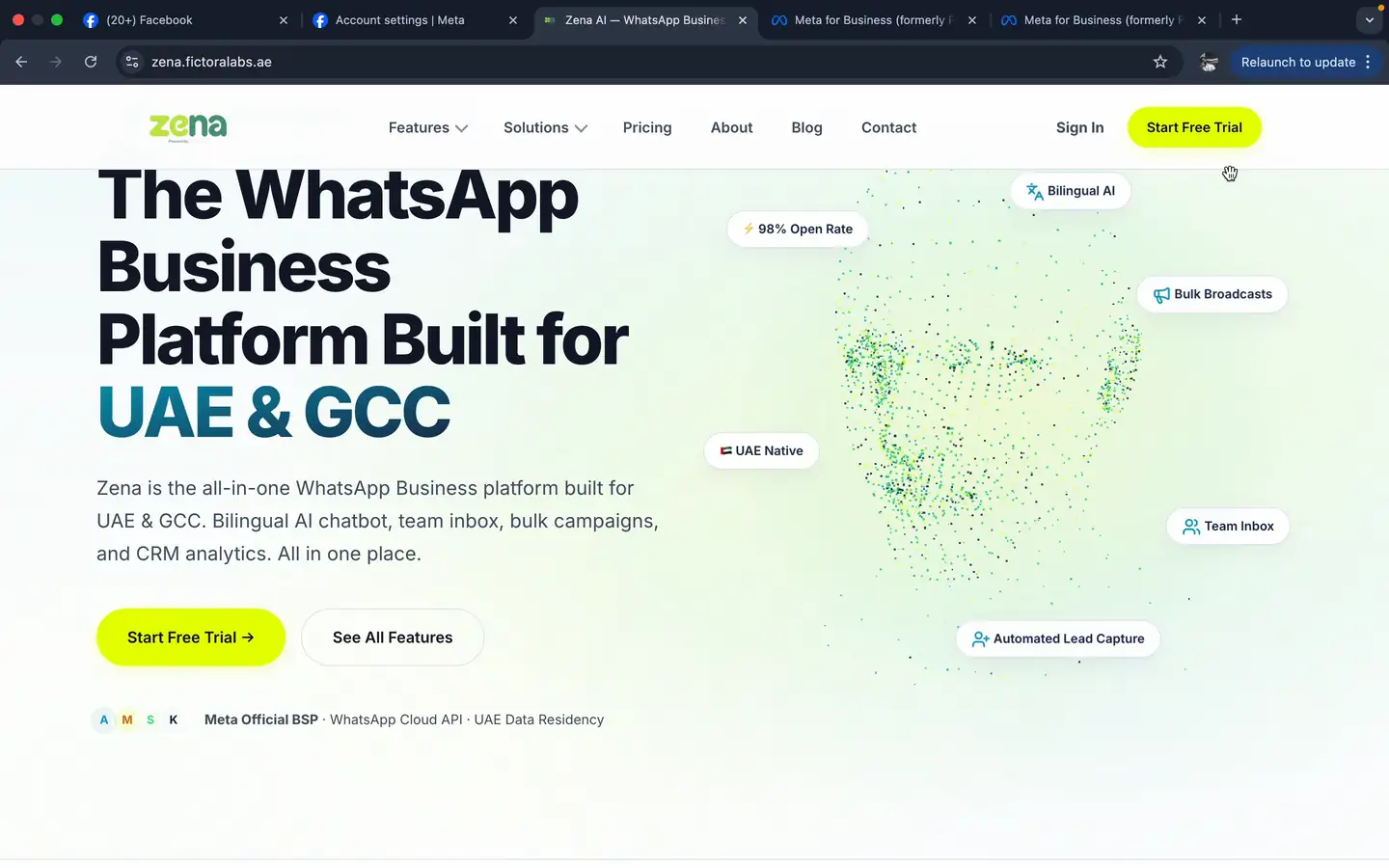
Zena landing page - The WhatsApp Business Platform Built for UAE & GCC
zena.fictoralabs.ae - 14-day free trial, no credit card.

Open zena.fictoralabs.ae and hit Start Free Trial. The create-account page splits in two: a value strip on the left, and your sign-up options on the right. Pick the green Continue with Facebook (Recommended) button.
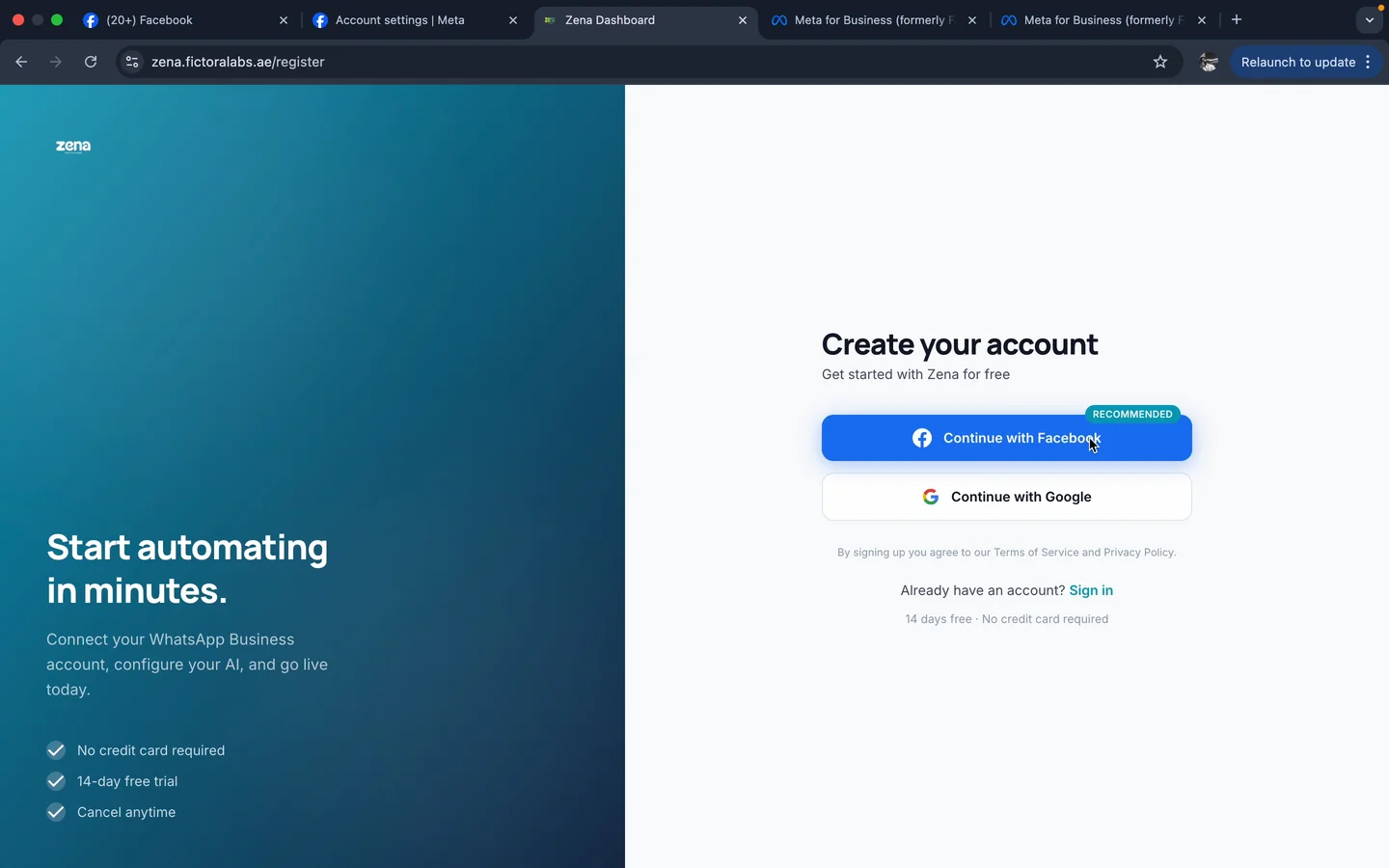
Zena create-account page with Continue with Facebook recommended button
"Continue with Facebook" is the recommended path. Google sign-up exists but you'll still need Facebook later, so save the round trip.

Why Facebook? Zena is a Meta Business Solution Provider. Every WhatsApp Business account ultimately lives inside Meta, so even sign-up runs through it. Use your real personal Facebook account at the password prompt.
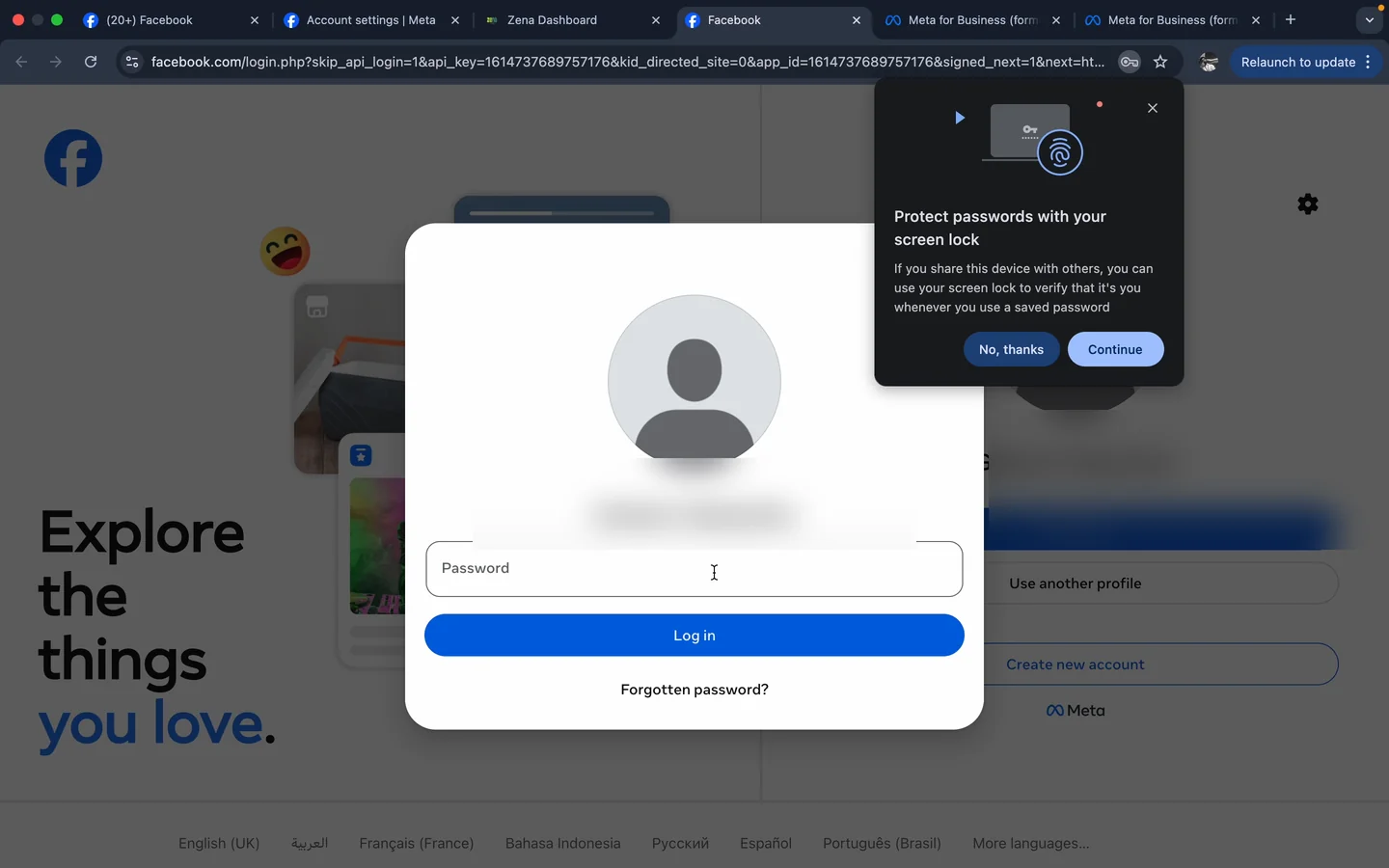
Facebook login screen during Zena sign-up
Facebook prompts for the password on your existing personal account. Don't create a new Facebook account here, Meta flags fresh ones in business flows.

Once you log in, Facebook shows a one-tap consent screen confirming the permissions you're granting Zena. Click Continue.
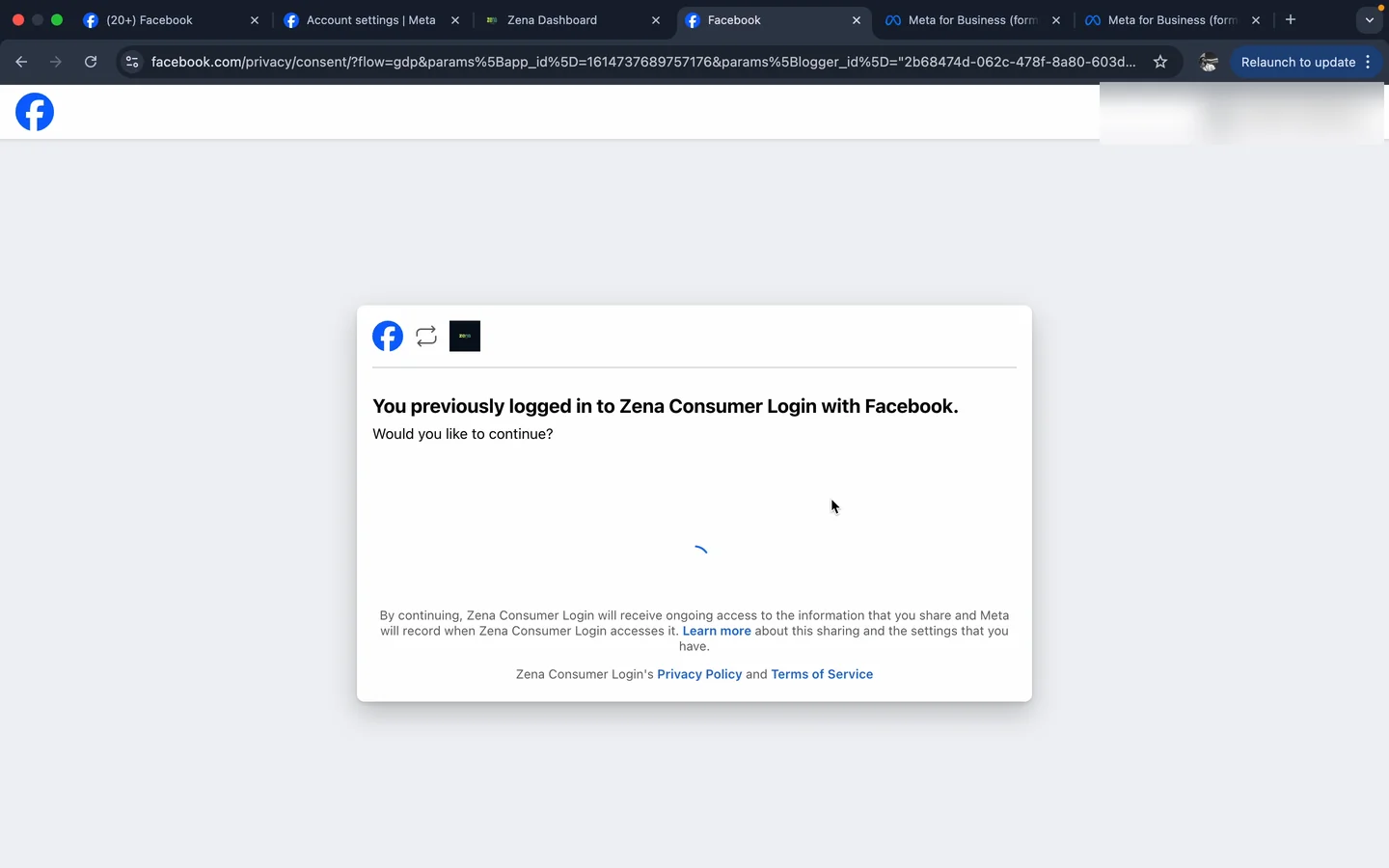
Facebook OAuth consent — You previously logged in to Zena Consumer Login with Facebook
Facebook OAuth consent. One click and you're back in Zena.

Step 2 - Land in the dashboard, hit "Setup Workspace"

After consent, Zena drops you into the workspace: Inbox, Contacts, Leads, Chatflows, Chatbot, Broadcasts, Templates, Analytics, Knowledge, Integrations, Meta CAPI, Companions. An 8-step product tour walks through each module so you know what's where before going live.
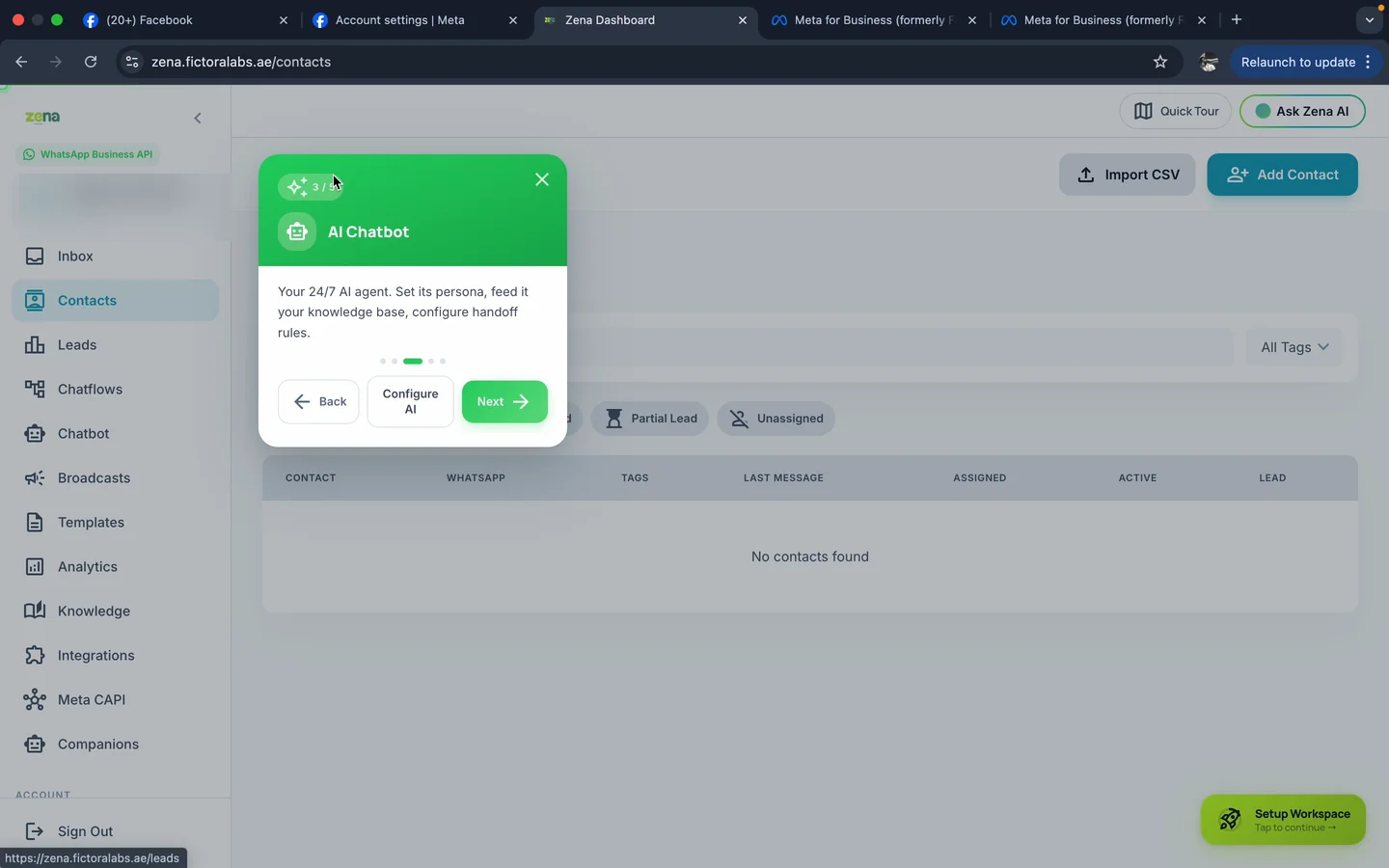
Zena dashboard product tour explaining the AI Chatbot module
Tour step example: "AI Chatbot - your 24/7 AI agent. Set its persona, feed it your knowledge base, configure handoff rules." Click Next through all 8.

The tour ends with one prompt: "Ready to go live? Hit Setup Workspace, bottom-right. Takes about 3 minutes." That green pill is the only thing you have to click here.
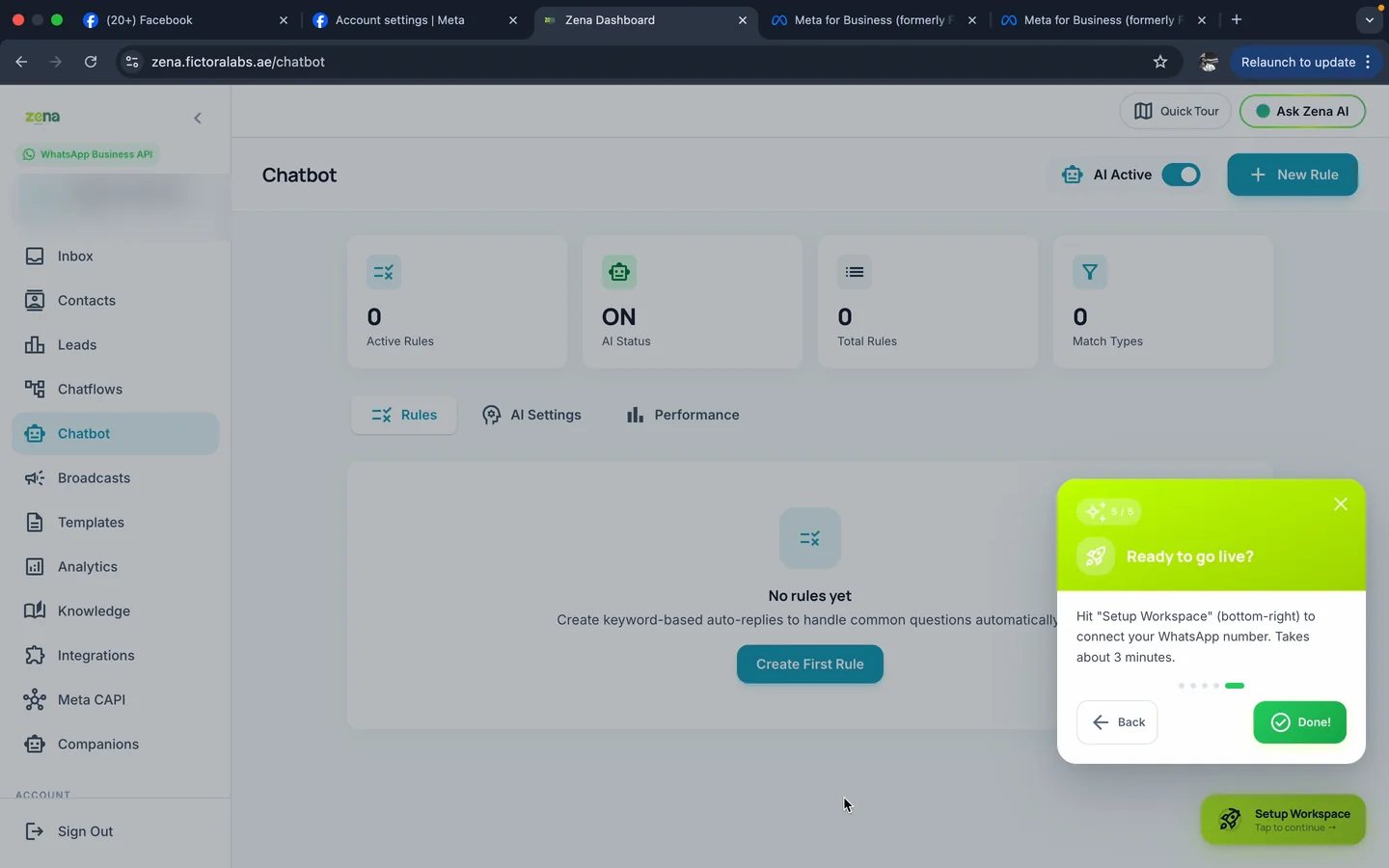
Zena dashboard with the Setup Workspace tour bubble at the end
End of tour. Hit "Setup Workspace" bottom-right.

Step 3 - The wizard opens

7 chapters, about 2 minutes, you can skip any step. Nothing is saved until the very end. The right side shows a live preview of how your AI will greet customers - it updates as you type.
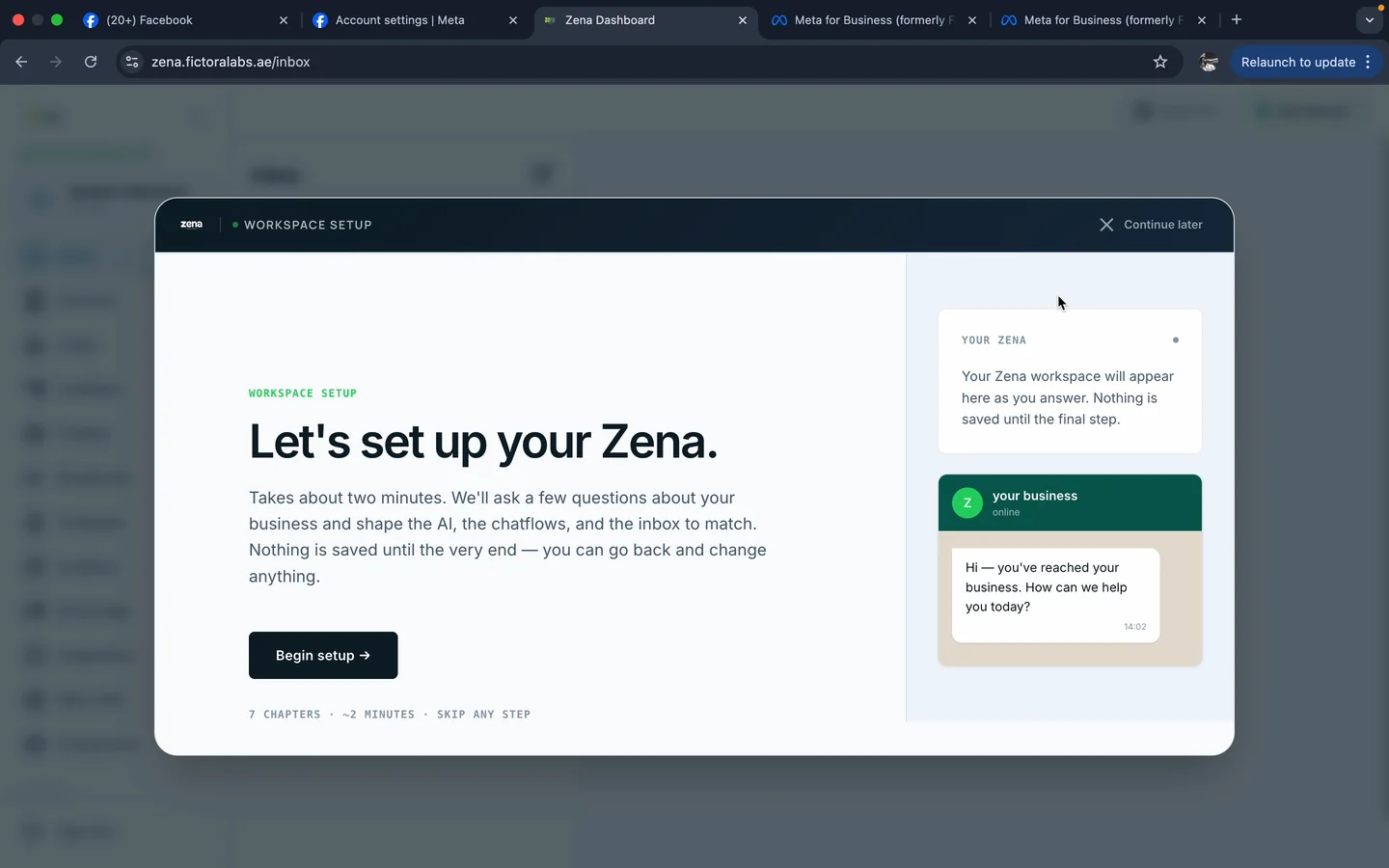
Workspace setup intro - Let's set up your Zena
"Let's set up your Zena." 7 chapters · ~2 minutes · skip any step.

Chapter 1 - Business name & industry

Type your business name (e.g. Digital Nomad). Pick an industry - Real Estate, Retail, Hotel, Travel, Restaurant, Salon, Fitness, Education, Marketing Agency, Professional Services, or Other. The right-side preview updates immediately - Zena's first reply now greets customers as your business.
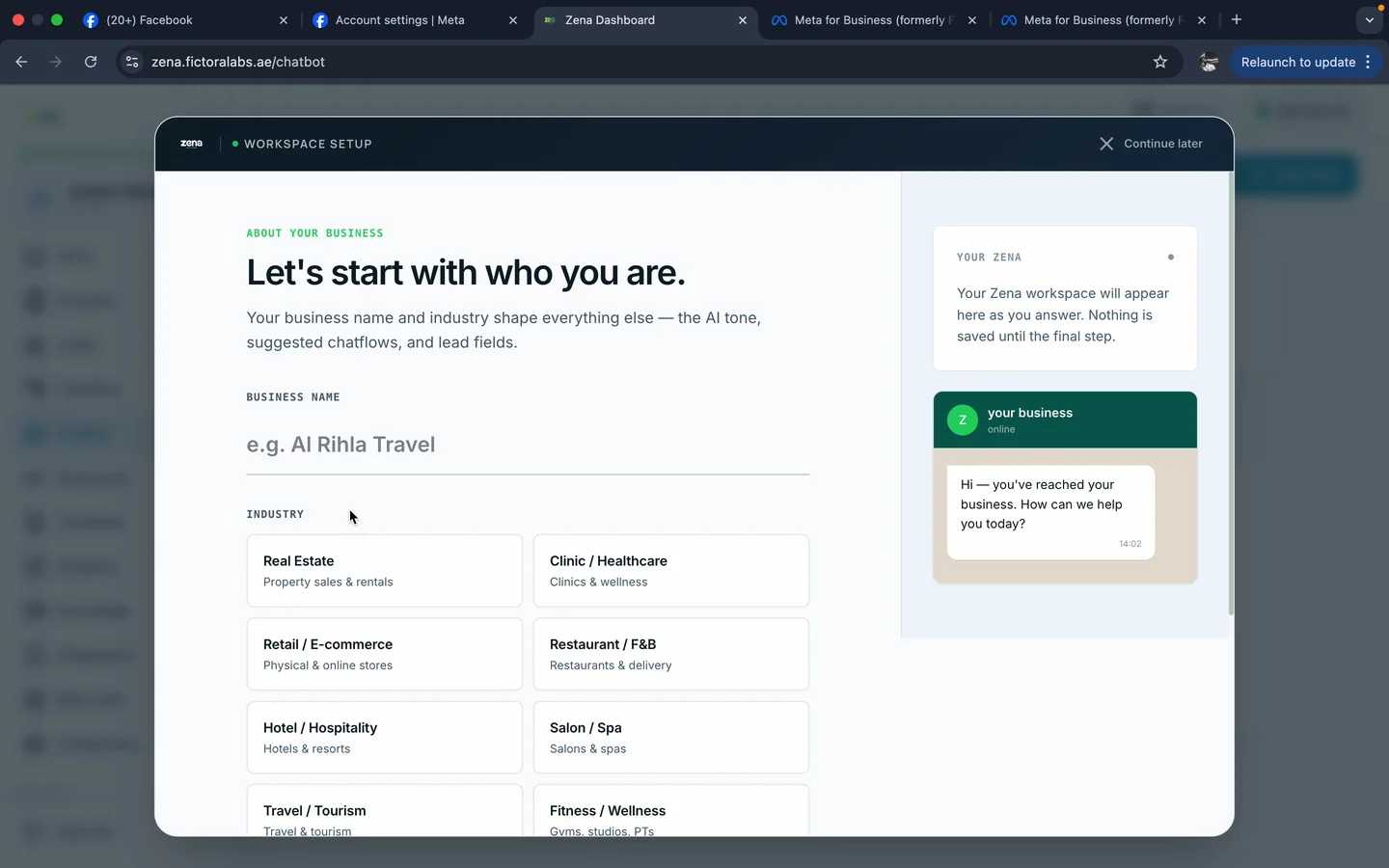
Wizard chapter 1 - business name and industry selection
Industry choice tunes the AI tone, the suggested chatflows, and the lead-capture fields.

Chapter 2 - Share your website, Zena reads it for you

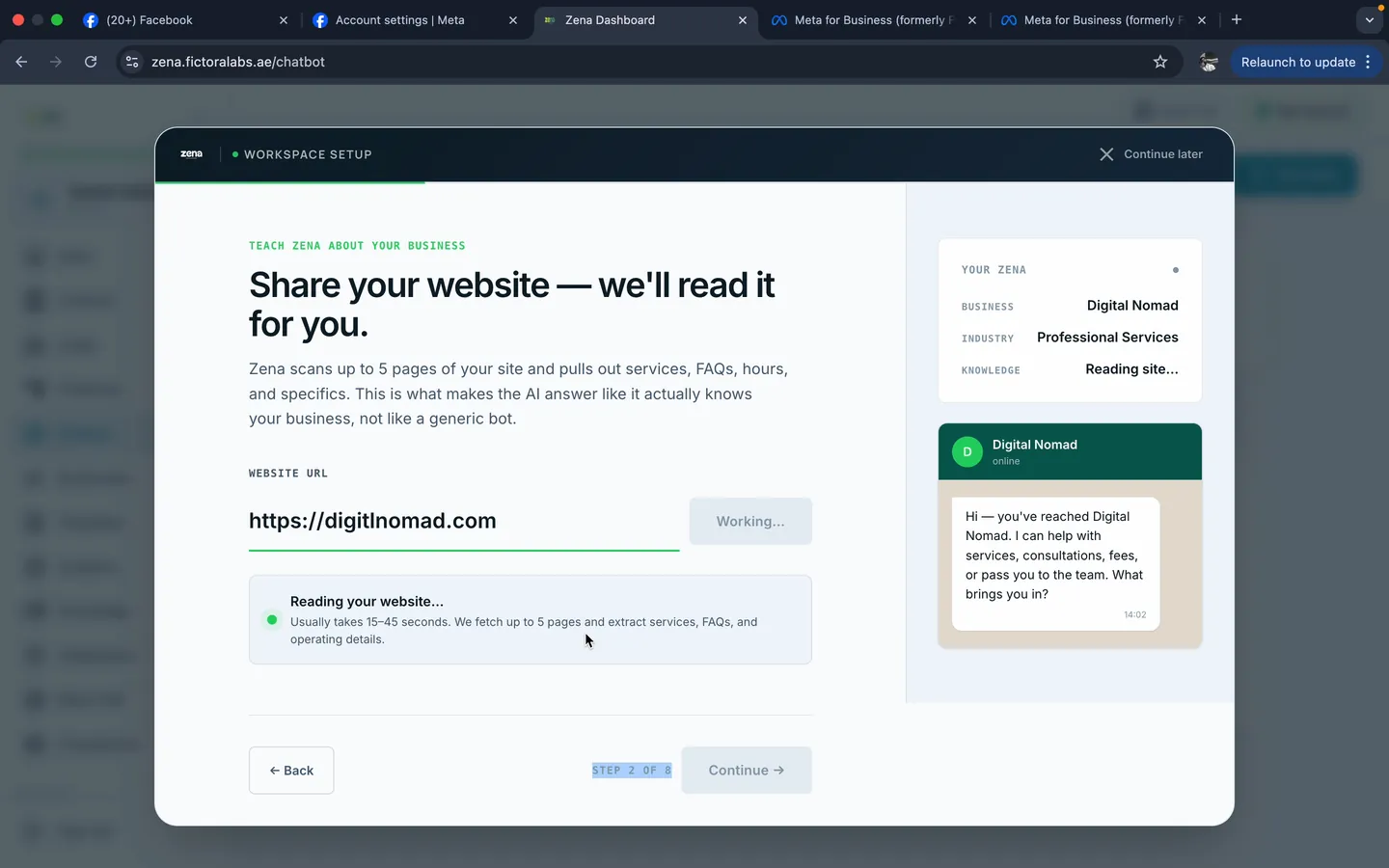
Paste your website URL and click Read site. Zena scans up to 5 pages - services, FAQs, hours, pricing - and pulls out specifics. In the recorded test we got 15 facts learned in about 30 seconds. This is the difference between an AI that answers like it knows your business and one that sounds like a generic bot.
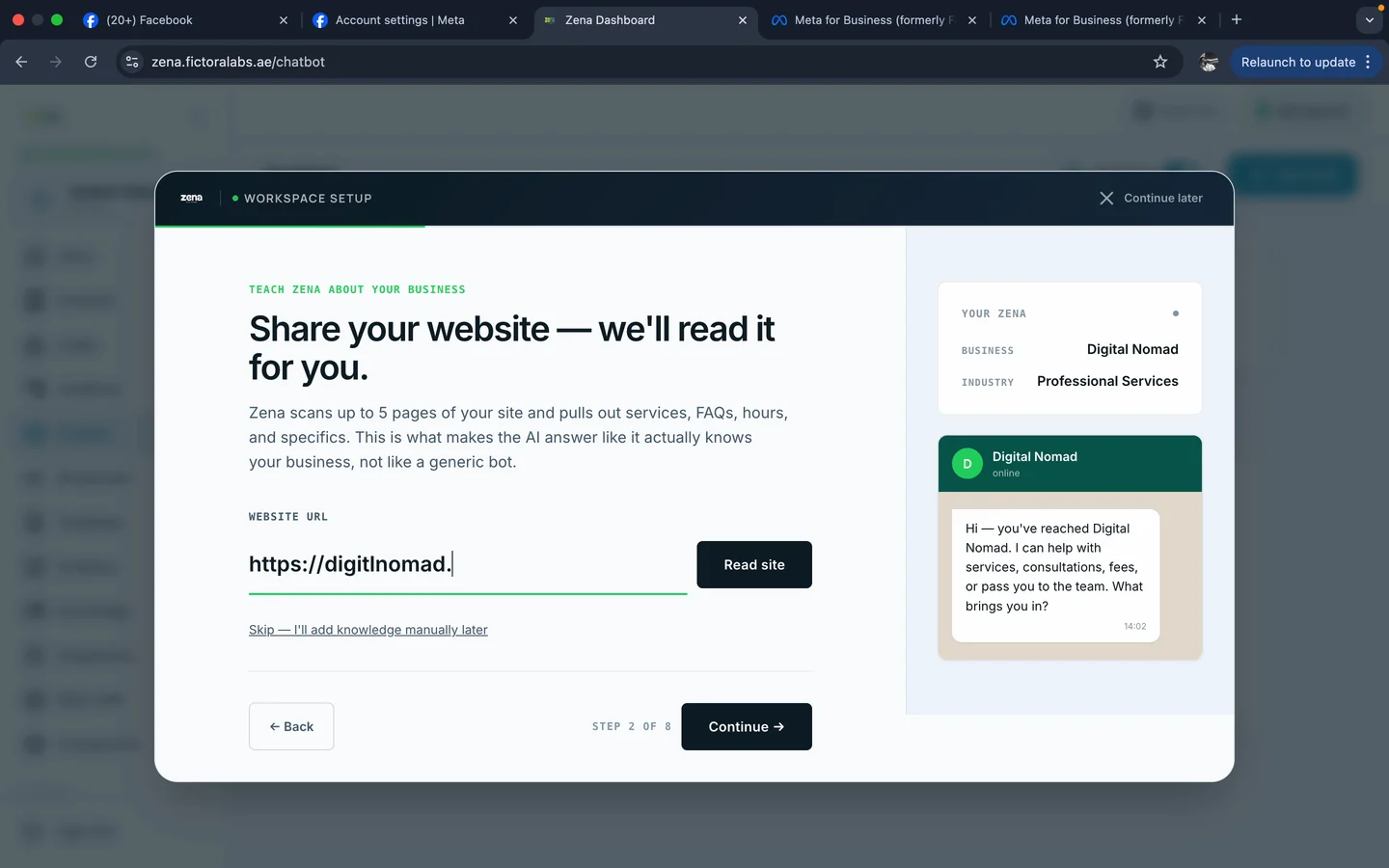
Wizard chapter 2 - paste website URL and Read site
Paste the URL - Zena does the rest.
Wizard chapter 2 - Zena reading your website
"Reading your website…" usually takes 15–45 seconds.
ℹ Site under construction or empty? Skip this chapter - you can upload PDFs or paste FAQs into the Knowledge module after onboarding.

Chapter 3 - Team size & WhatsApp number

Drop in your WhatsApp number in international format (+971…) and pick your team size: 1–5, 5–20, 20–50, or 50+. Team size determines the plan recommendation - Starter for solo and small teams, Growth and Business for larger operations.
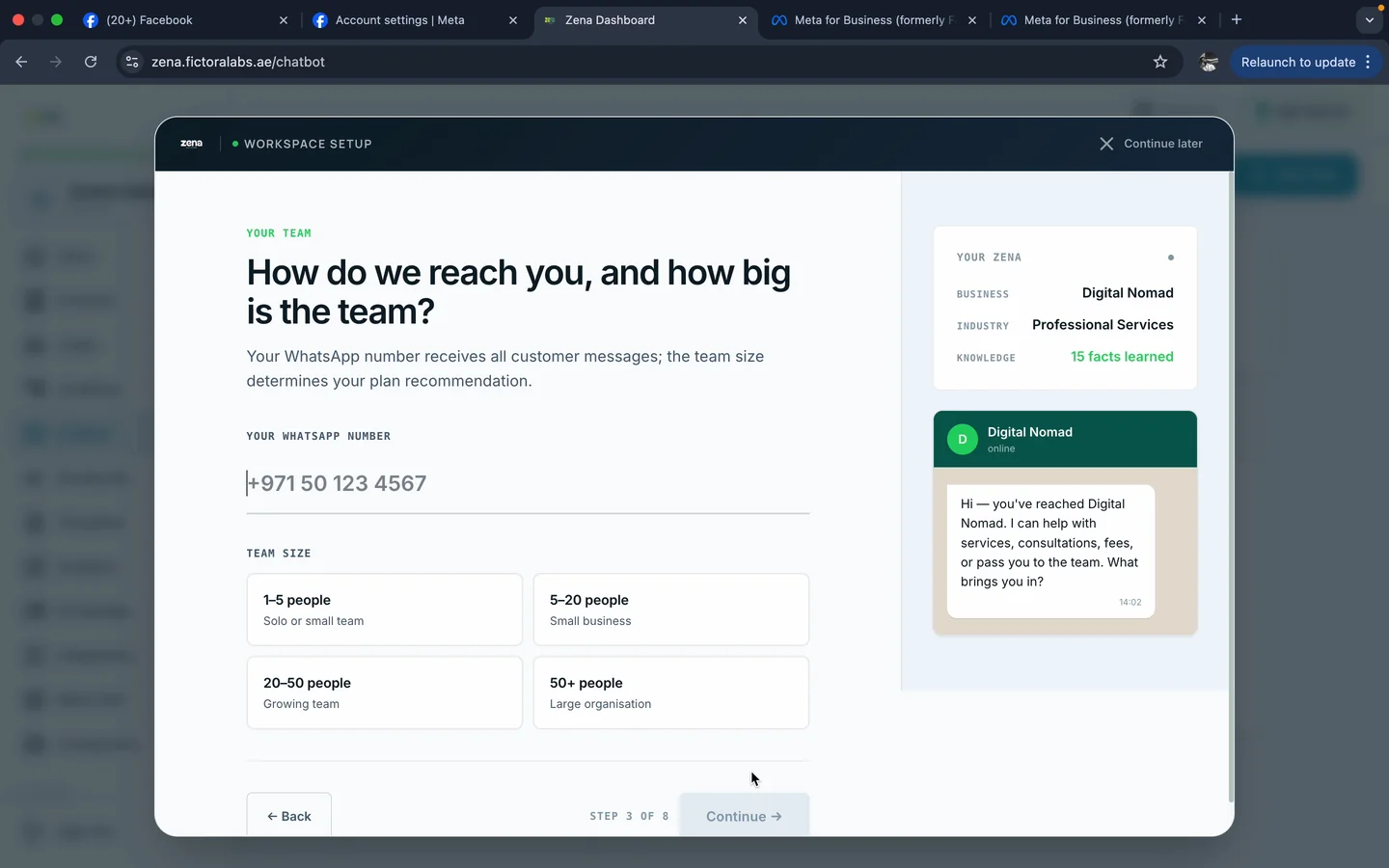
Wizard chapter 3 - team size and WhatsApp number
+971 50 123 4567 format. Team size drives plan recommendation.

Chapter 4 - Which of these sound like you?

Tick the challenges that match your reality - after-hours leads, high message volume, lead qualification, follow-ups, appointments, broadcasts, team handoff, Arabic support. Zena tunes default behaviour to address these first.
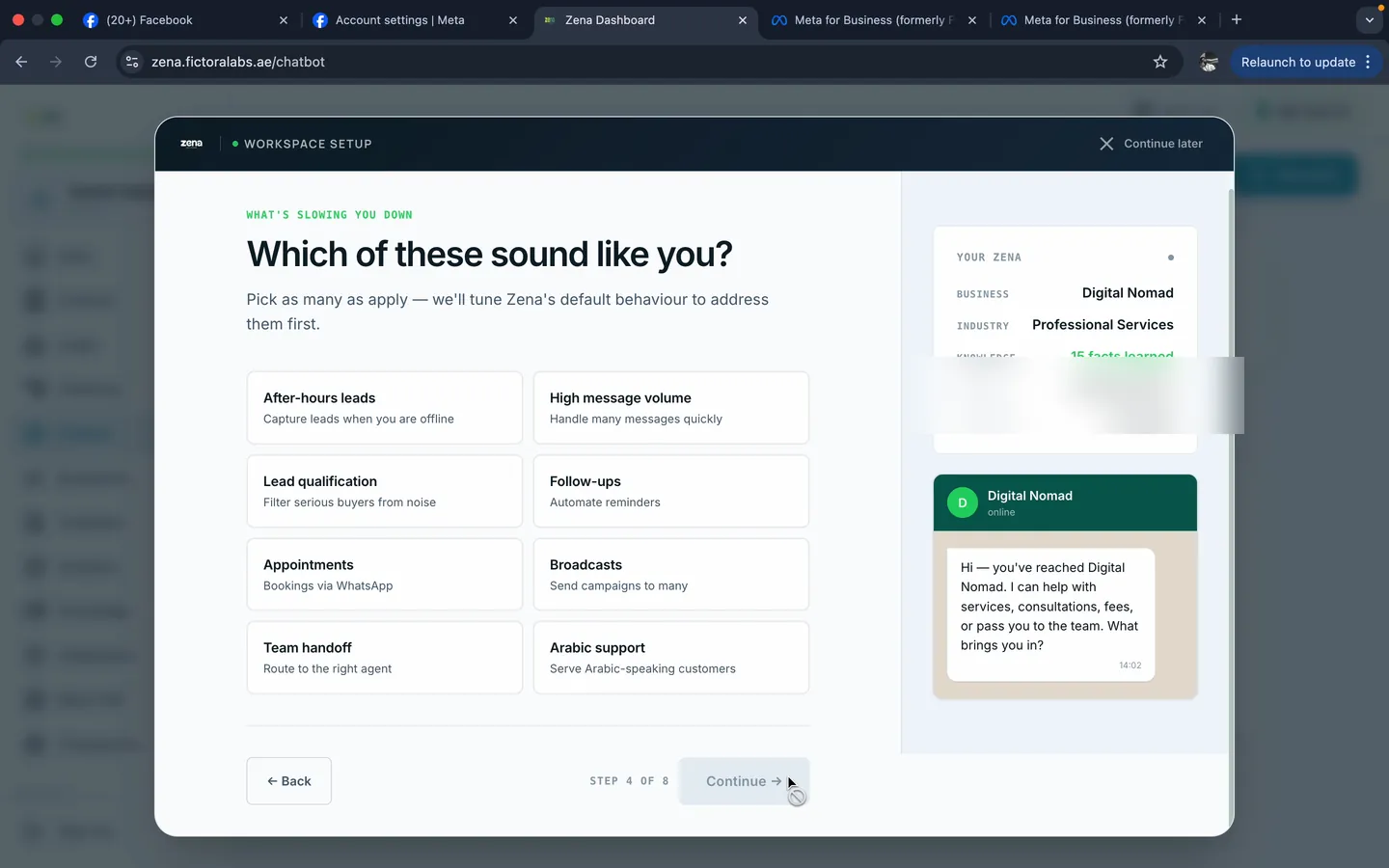
Wizard chapter 4 - challenges multi-select
Pick as many as apply. The wizard prioritises modules around them.

Chapter 5 - Pick what matters most

Toggle on the modules you want live first: AI auto-replies, capture leads, send broadcasts, team inbox, CRM & analytics, workflow automation. Anything you skip can be turned on later from Settings, so this is just a "what activates on day one" choice.
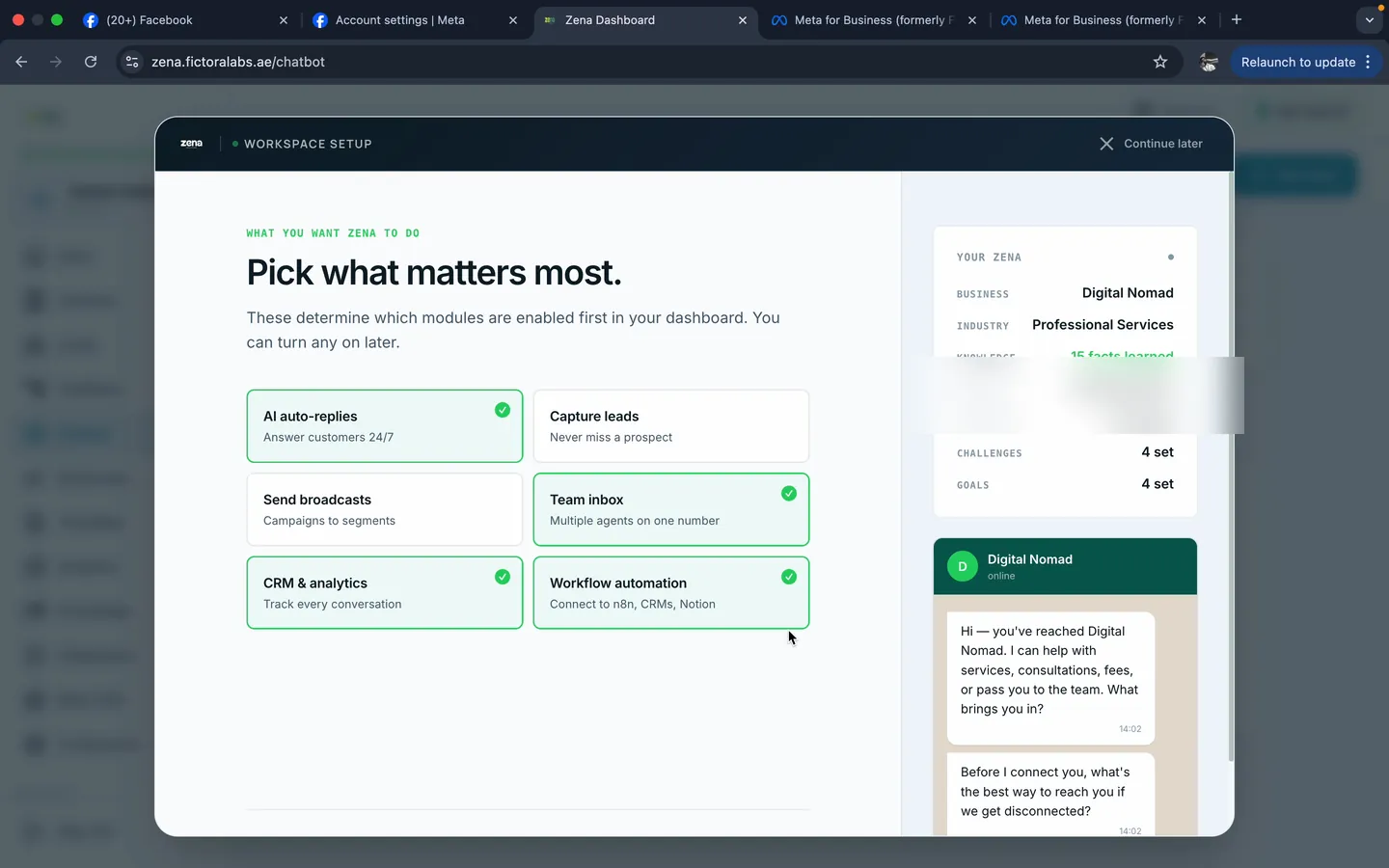
Wizard chapter 5 - Pick what matters most
"AI auto-replies, Team inbox, CRM & analytics, Workflow automation" ticked in the recorded test.

Chapter 6 - Tell us your working hours

Pick the time zone (default Dubai, GST +4) and toggle the days you operate. For each open day, set start and end time. Outside these hours Zena acknowledges the customer and commits to a next-business-day follow-up so no lead is left hanging overnight.
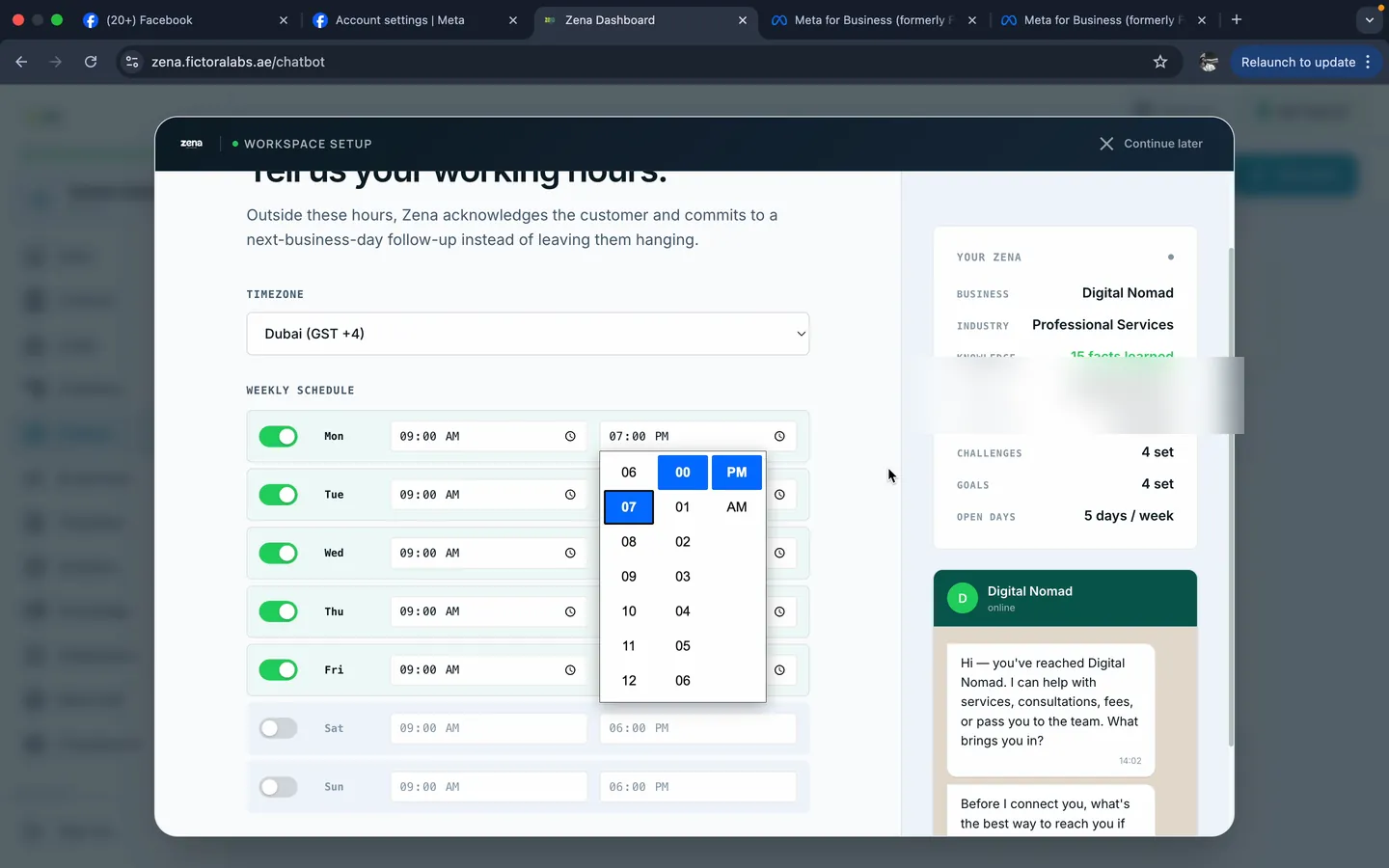
Wizard chapter 6 - Tell us your working hours, with timezone and weekly schedule
Mon-Fri 09:00 to 18:00, Sat-Sun off. Adjust to whatever your business actually runs.

Chapter 7 - Bring your number on board

This is the moment of truth. Zena offers two paths and you pick one. The recommended path is Keep using WhatsApp Business App: that's Coexistence, where your phone app keeps working and Zena runs alongside it. The alternative is Switch to Cloud API entirely, which removes the phone app from the loop completely.
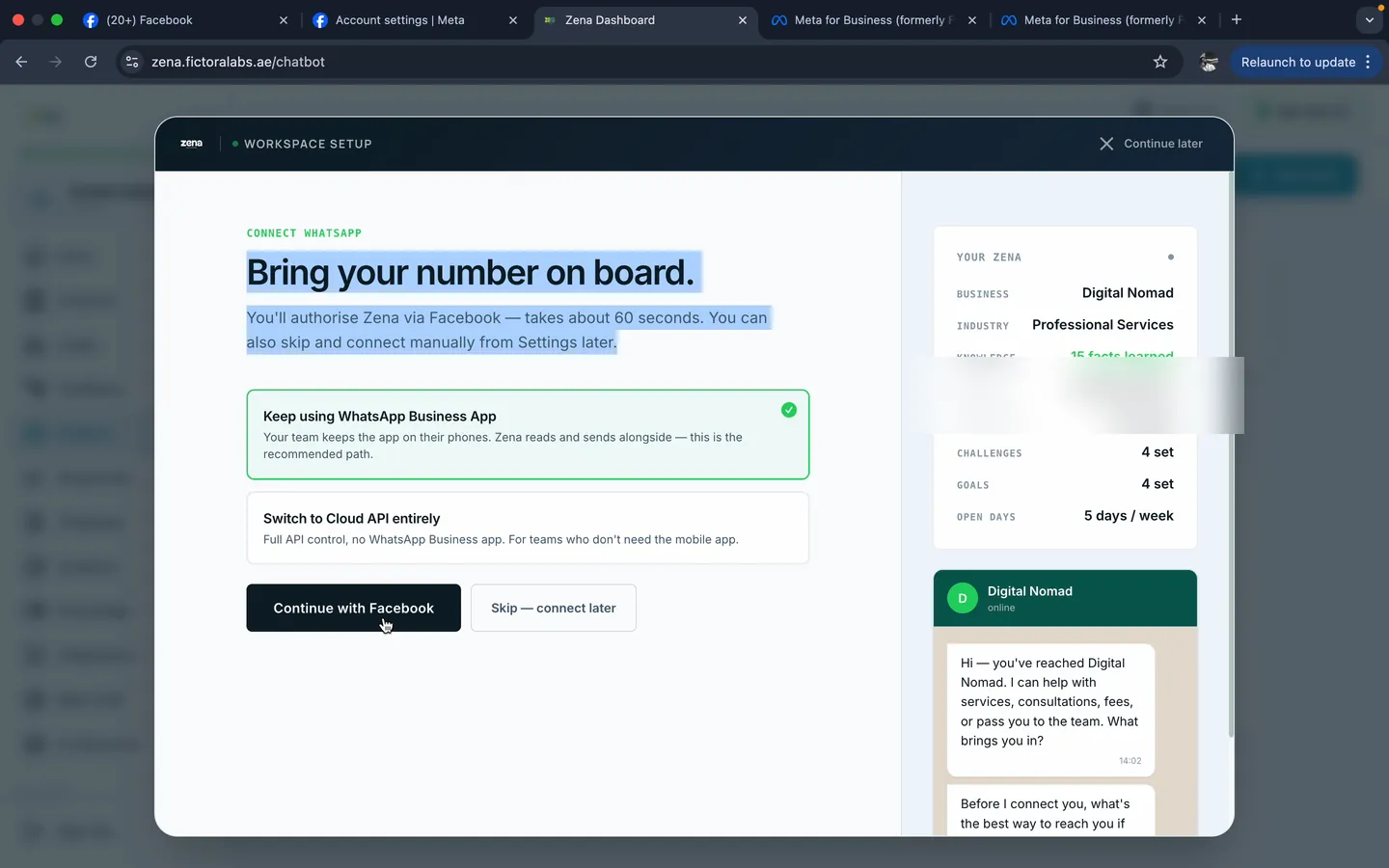
Wizard chapter 7 - Bring your number on board, with Keep using WhatsApp Business App selected and Continue with Facebook button
"Keep using WhatsApp Business App" ticked (the recommended path). Then "Continue with Facebook" - that's the button that moves you to Meta.

Recommended - keep WhatsApp Business App

  • Your phone app keeps working normally
  • Your team gets a shared inbox in Zena alongside it
  • This is Coexistence, the safer path for most businesses

Switch to Cloud API entirely

  • Full API control, no WhatsApp Business app on phone
  • Only pick this if your team doesn't need the mobile app
  • Harder to undo, you cannot easily go back to the app
⚠️
Don't click Continue with Facebook yet. Before clicking, make sure your Meta business portfolio already has your WhatsApp Business number linked to it. That's the prerequisite the embedded signup expects. We'll do that side trip in the next tab and come back to this exact screen.
Step 2 of 2

Connect to Meta - about 3 minutes

You're sitting on the chapter 7 "Bring your number on board" screen. Before clicking Continue with Facebook, take a quick side trip to business.facebook.com to make sure your WhatsApp number is already linked to a Meta business portfolio. Then come back here and click Continue. The embedded signup, phone QR scan, and "Zena is being built" screen all follow.

💡
Why the side trip? Meta's embedded signup needs your WhatsApp number to already exist inside a business portfolio before it can hand it to Zena. So Part A is "make sure the prerequisite is in place" and Part B is "click Continue with Facebook back in Zena and let the embedded signup do its thing".
⚠️
Don't close the Meta popup once it opens. Complete the embedded signup in one session, interrupting mid-way can leave your account in a stuck state that's harder to recover from than starting clean.

Part A - Confirm the Meta prerequisite (business portfolio + WhatsApp linked)
1
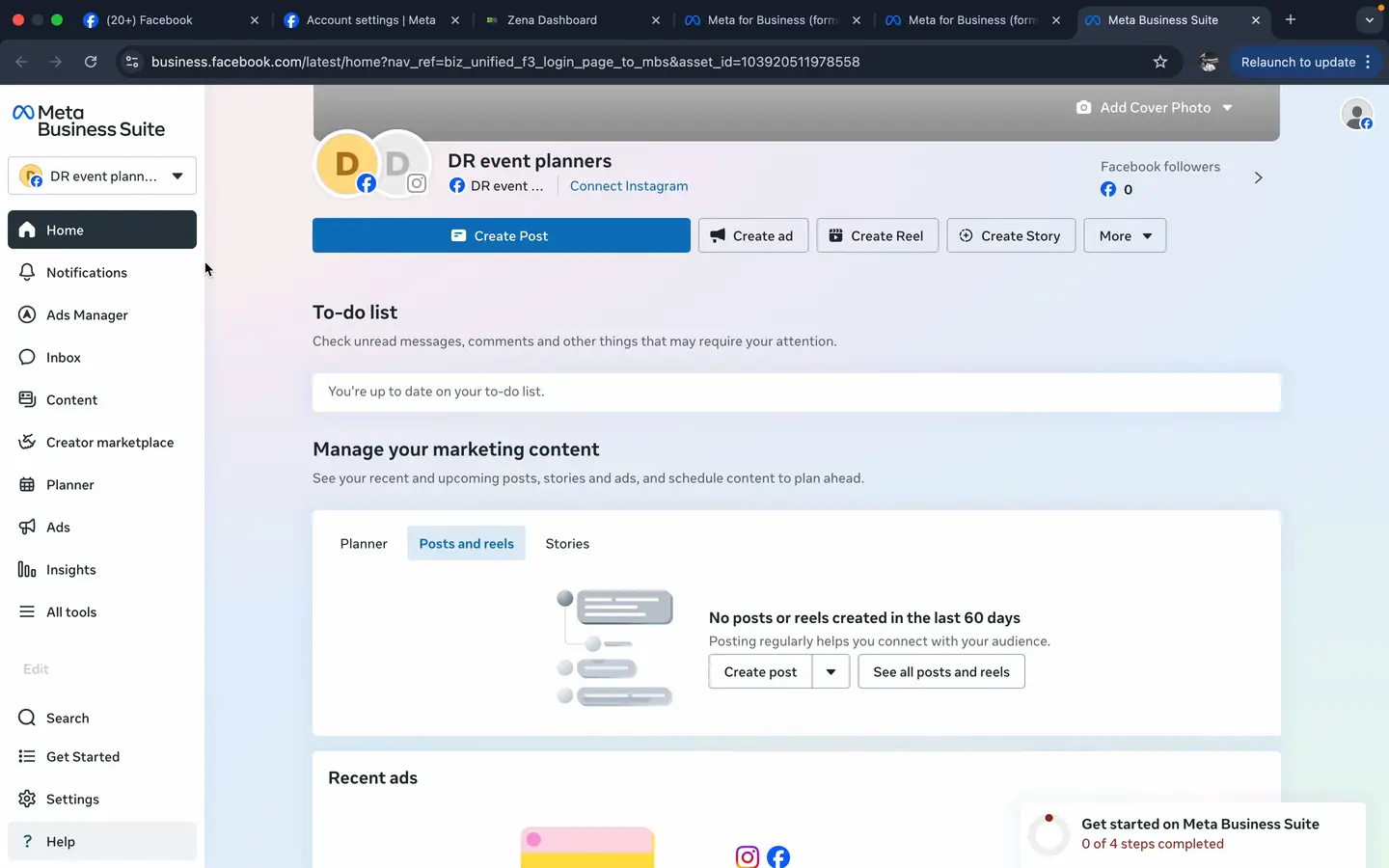
Open business.facebook.com in a new tab
If you already have a Meta business portfolio (most businesses with a live Facebook Page do), it opens on the home dashboard. If you don't, Meta walks you through creating one in a couple of fields - no document upload at this stage.
Meta Business Suite home dashboard for an existing portfolio
Meta Business Suite home - existing portfolio path.
2
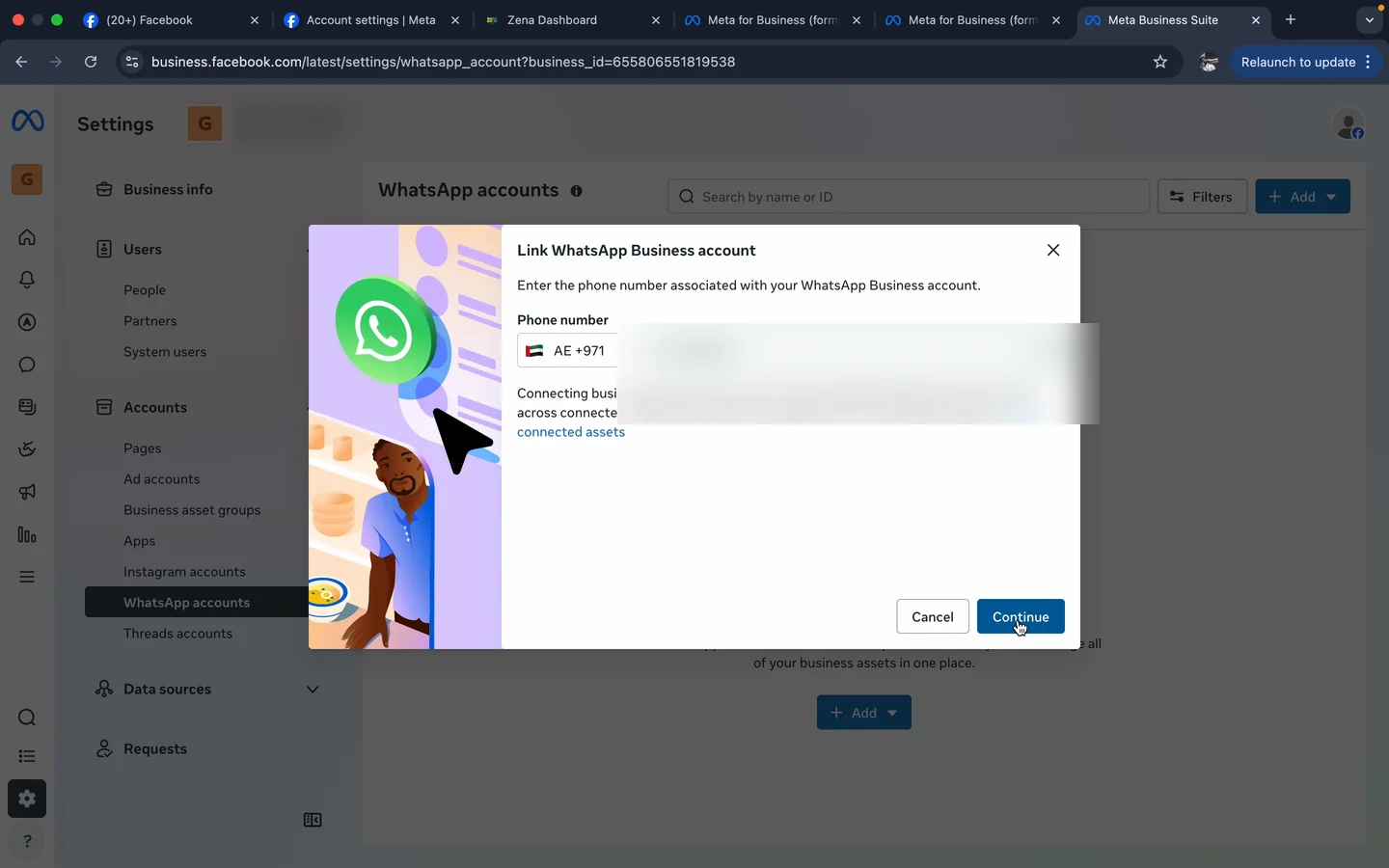
Go to Settings → Accounts → WhatsApp accounts → Add
A "Link WhatsApp Business account" dialog opens. Switch the country code from US +1 to AE +971. Type your WhatsApp Business number - no spaces, no dashes. Click Continue.
Meta Business Suite - Link WhatsApp Business account dialog with UAE +971 selected
UAE +971, your number, Continue. That's it for this dialog.
3
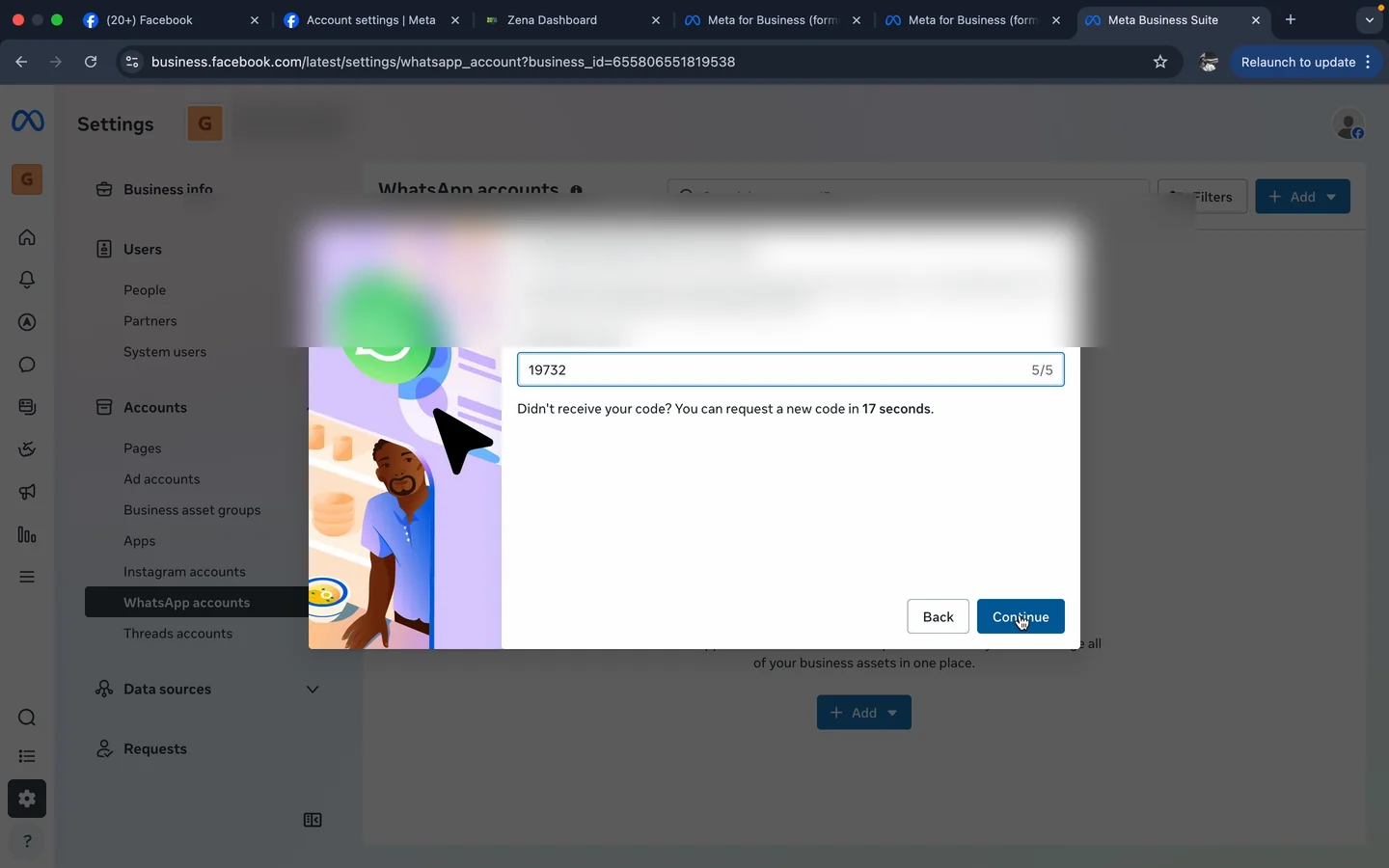
Enter the 5-digit code Meta sends to your WhatsApp Business app
The code arrives as a WhatsApp message from the official Facebook Business chat (the verified one with the blue tick) inside your WhatsApp Business app on that phone. Type the 5 digits into the verification dialog and click Continue.
Meta Business Suite verification code dialog with 5-digit OTP filled in
Verification code dialog. The countdown ("request a new code in 17 seconds") gives you a buffer before resend is allowed.
⚠ Don't enter the code wrong too many times. Meta locks verification for 12 hours after repeated wrong attempts. If the WhatsApp message doesn't arrive in 2 minutes, leave this dialog open and check your WhatsApp Business app inbox manually.
4
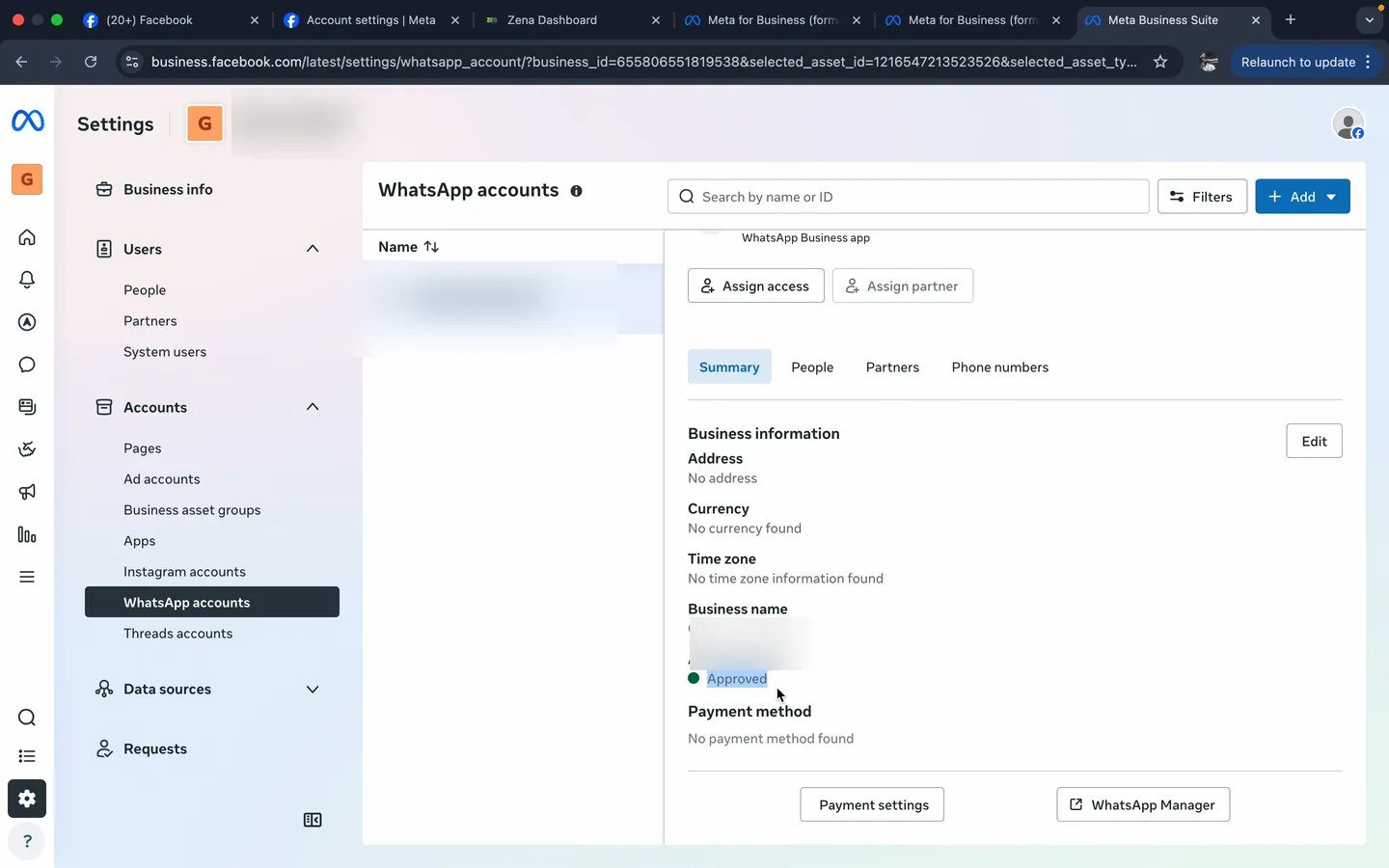
Confirm the status flips to Approved
Once the code is accepted, the WhatsApp accounts list shows your new account with status Approved. The prerequisite is now in place: your number lives inside a Meta business portfolio, ready for the embedded signup to pick it up.
Meta Business Suite - WhatsApp account showing Approved status
Account status: Approved. The prerequisite is satisfied. Now switch back to Zena.

Part B - Back on chapter 7 in Zena, click Continue with Facebook

Switch back to your Zena tab. You're still on the chapter 7 "Bring your number on board" screen with Keep using WhatsApp Business App selected. Now click Continue with Facebook. Meta's embedded signup launches in a popup with your now-linked number ready to connect.
1
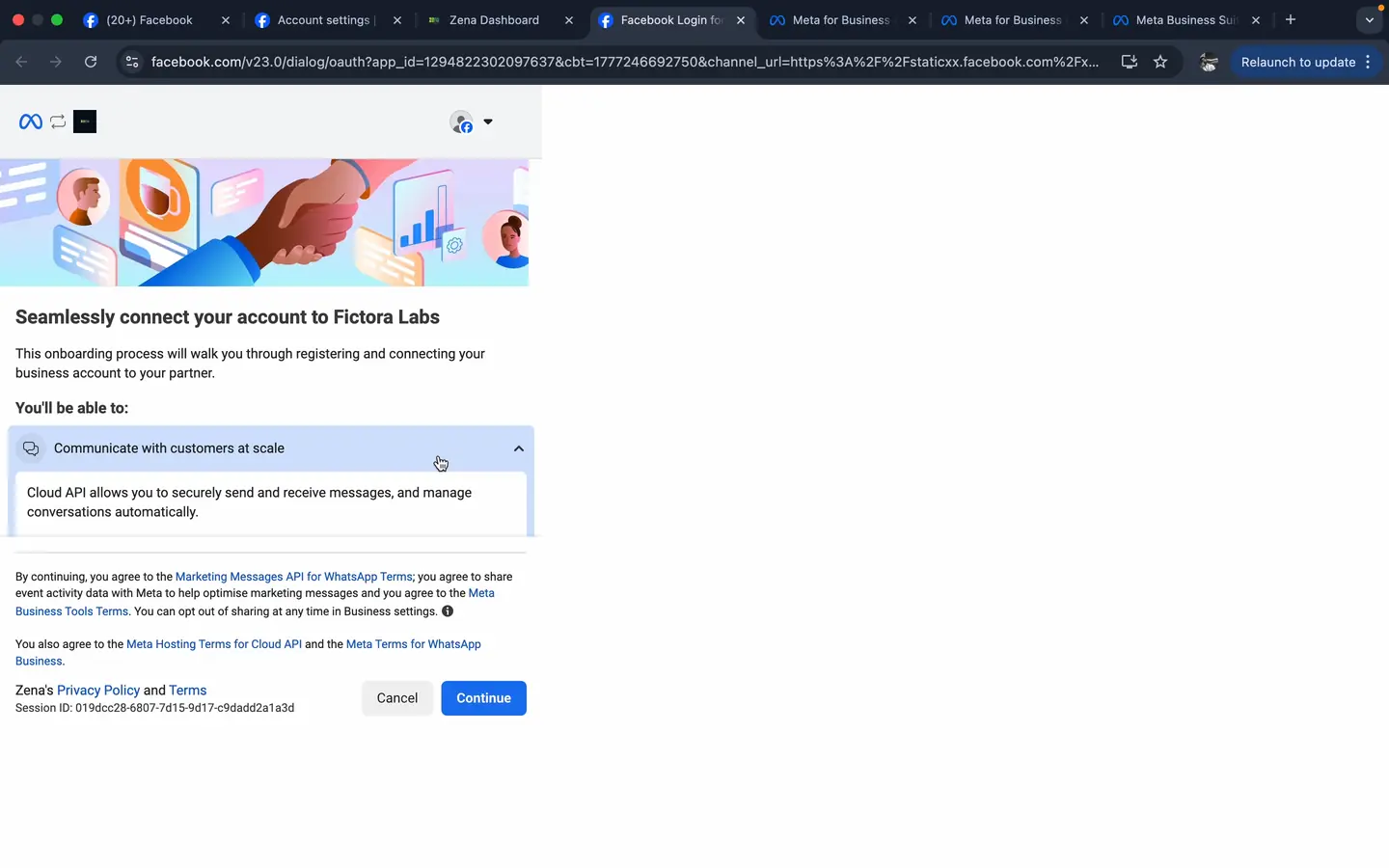
"Seamlessly connect your account to Fictora Labs"
Meta's screen explains the partnership and shows what you're agreeing to - Marketing Messages API for WhatsApp, Meta Business Tools, and Cloud API hosting terms. Read them. Click Continue.
Meta embedded signup - Seamlessly connect your account to Fictora Labs
"Communicate with customers at scale - Cloud API." Continue.
2
Pick the business assets to share with Zena
Select the business portfolio you just used (the one holding your WhatsApp number). For WhatsApp Business account, choose "Connect a WhatsApp Business app" - this is the Coexistence path that matches the recommended option you picked in Zena's wizard. Click Next.
3
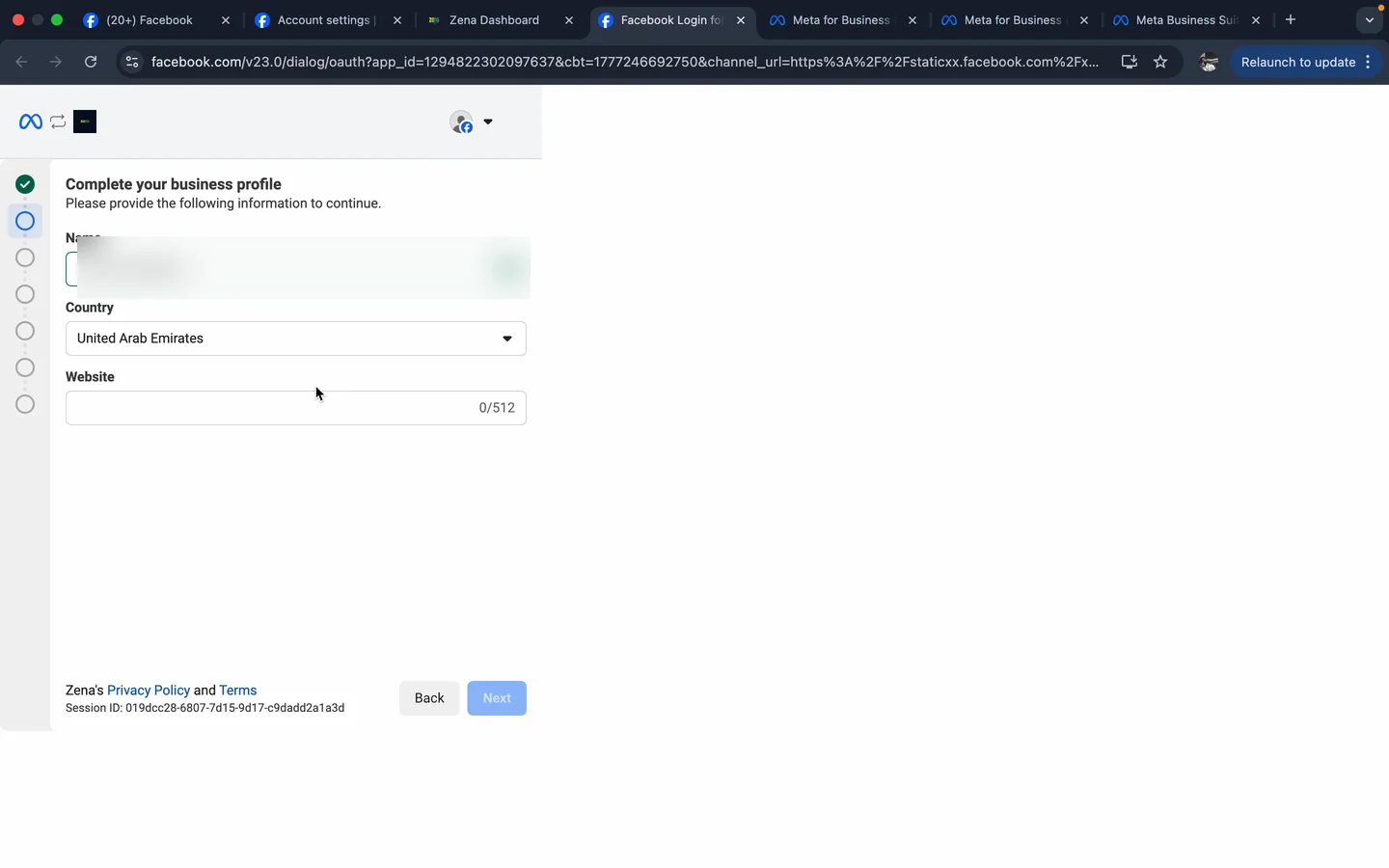
Complete your business profile
Country: United Arab Emirates. Website: your business website (the same one you ingested in Zena's wizard). Name: your name as it appears on the Meta account. Click Next.
Meta embedded signup - complete your business profile with UAE selected
Country UAE. Website. Name. Next.
4
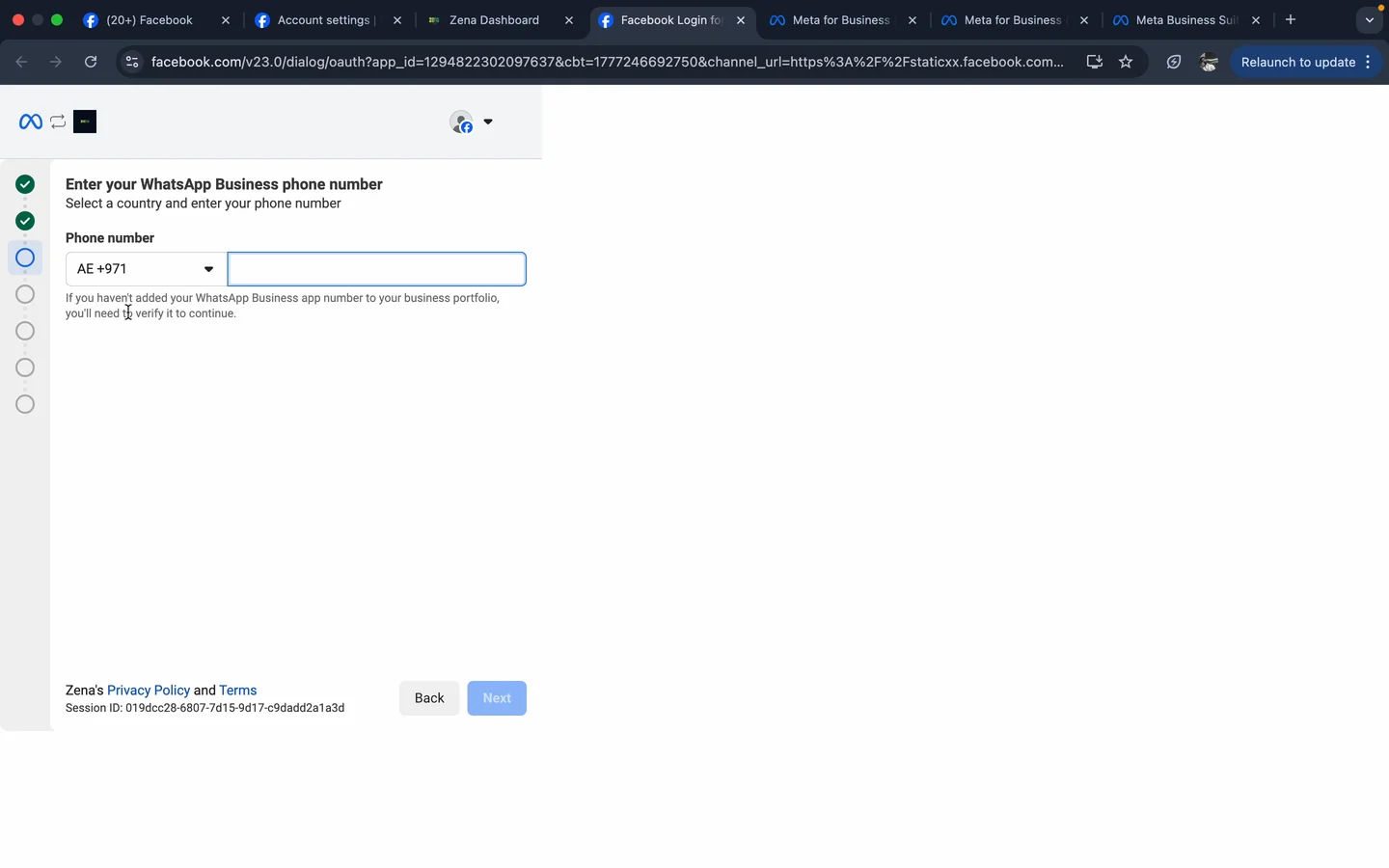
Enter your WhatsApp Business phone number
Country: AE +971. Number: the same one you added to the portfolio. Because it's already in the portfolio from Part A, Meta won't ask you to verify again here.
Meta embedded signup - enter your WhatsApp Business phone number
AE +971 + your number. Next.
5
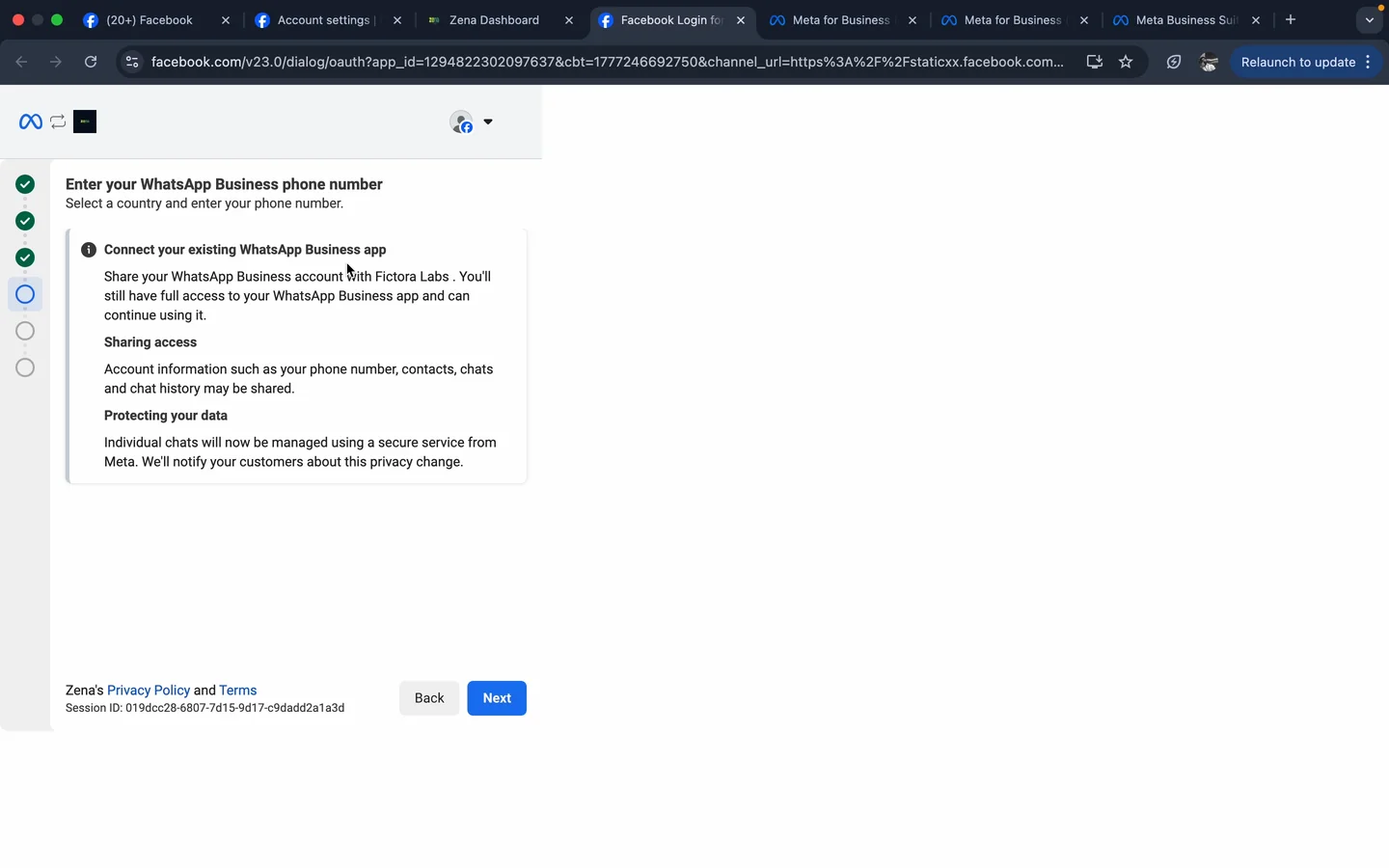
Connect your existing WhatsApp Business app - read the data-sharing terms
Meta spells out exactly what's about to happen: phone number, contacts, chats and chat history may be shared with Fictora Labs. Individual chats now flow through a secure Meta service. Your customers will be notified about the privacy change. This is Coexistence working as designed - your phone app keeps working, Zena gets a parallel view.
Meta embedded signup - sharing access and protecting your data disclosure
Sharing access + protecting your data disclosure. Read it. Click Next.

Part C - Phone QR scan (about 45 seconds)

Meta now shows a QR code on the desktop. The next 5 actions happen on your phone. Have the WhatsApp Business app open and ready.
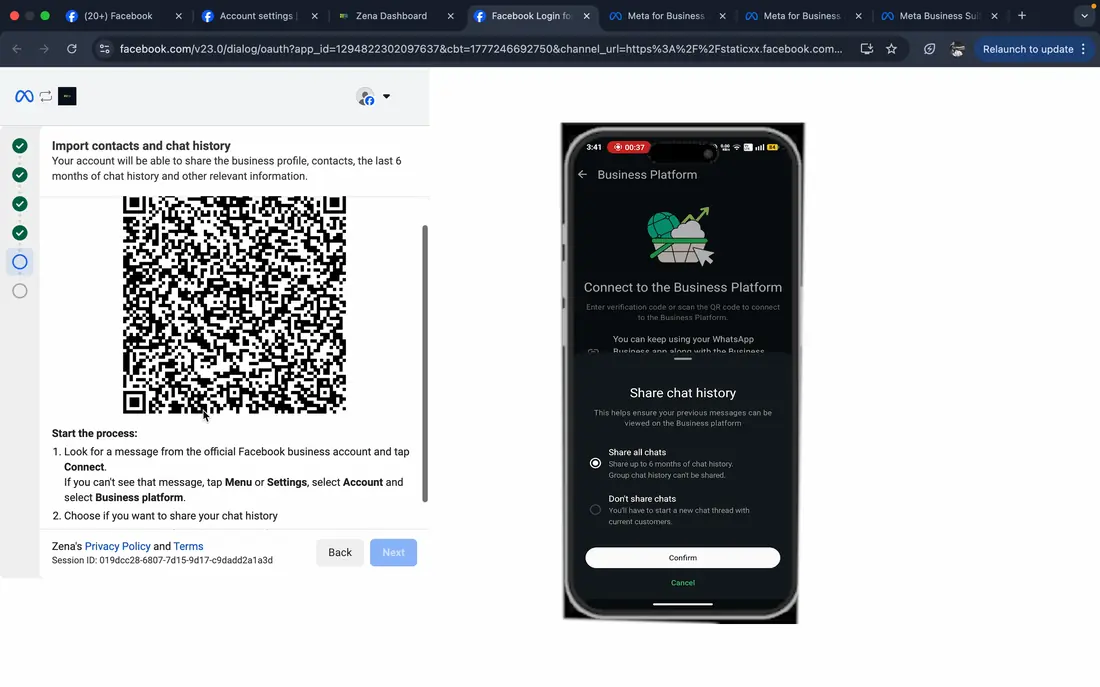
Meta embedded signup QR code on desktop alongside the phone Connect to Business Platform / Share chat history screen
Desktop QR on the left. Phone-side flow on the right - both shown so you can see what's about to happen.
1
On your phone - open the WhatsApp Business app and tap the official Facebook Business chat
It's the verified one with the blue tick. The latest message inside should be "Connect to the Business Platform". Tap it.
2
Read the Business Platform terms
Meta lays it out: you can keep using the WhatsApp Business app alongside the connection. Up to 6 months of chat history can be shared. Group chats won't be included. From this point on, one-to-one chats are managed through a secure Meta service.
3
"Share chat history" prompt - pick Share all chats
Two options: Share all chats, or Don't share chats. Pick Share all chats so Zena starts with full context. Tap Confirm.
4
Scan the QR code on your desktop
Phone switches to the Scan QR Code screen. Point the camera at the QR on the desktop. If the camera scan fails, tap "Enter access code instead" as a fallback.
5
Wait for "Connecting your account…" then the green check
A small overlay shows "Connecting your account. This could take up to 45 seconds." Then the phone shows a green check - "You're connected to Fictora Labs." Tap OK. Phone goes back in your pocket. Everything else happens on the desktop.

Part D - Final desktop steps and "Zena is being built"
1
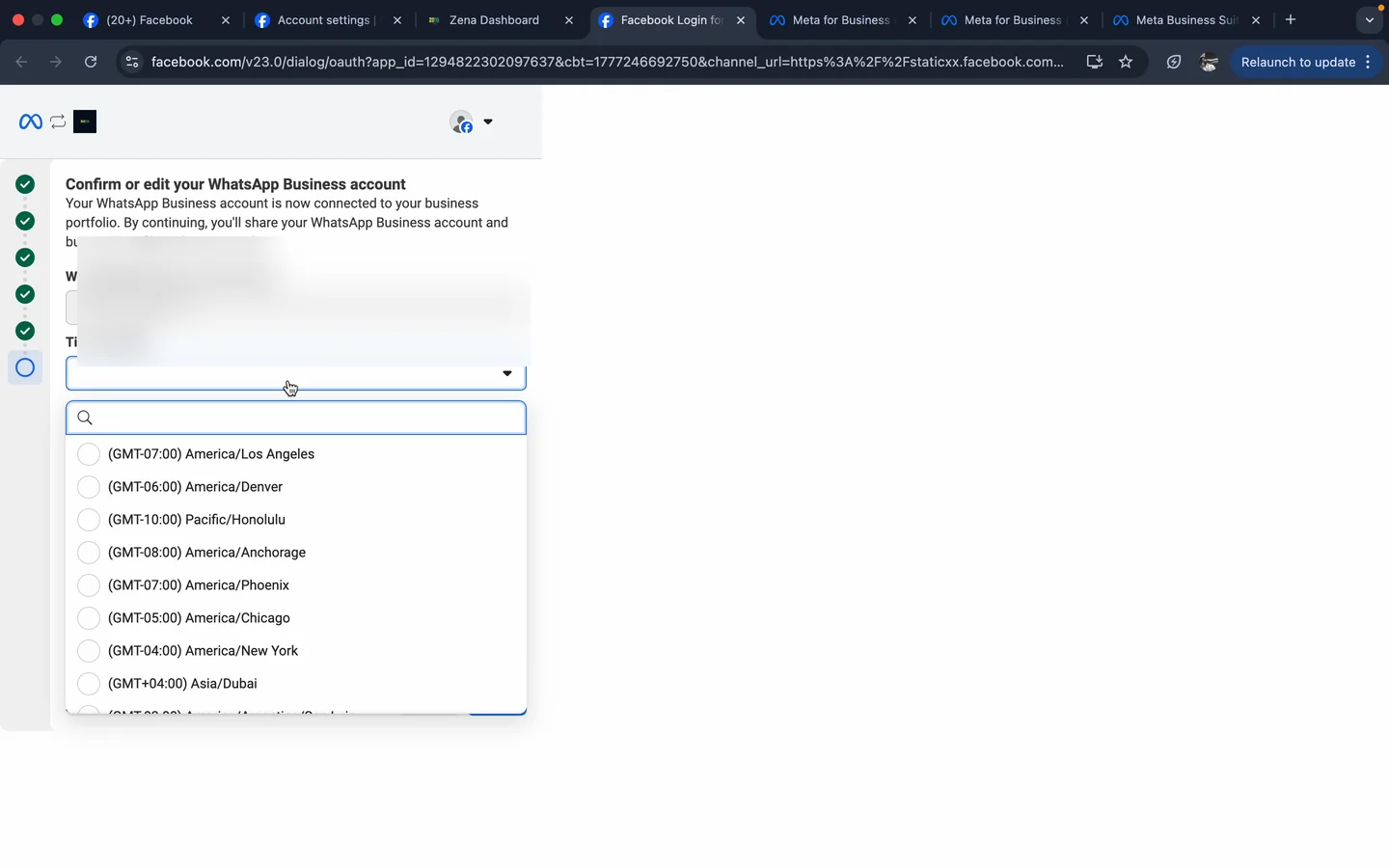
Confirm your WhatsApp Business account - set time zone Asia/Dubai
Meta drops you back on the desktop with one last confirmation screen. Time zone: Asia/Dubai. Click Next.
Meta embedded signup - confirm WhatsApp Business account with Asia/Dubai time zone
Asia/Dubai. Next.
2
Final review - "Zena is requesting access" - Confirm
Meta shows what Zena will do: manage conversations, log events on Meta's behalf. Confirm.
3
"Your account is connected to Fictora Labs" - Finish
Meta confirms the connection. You'll see a note that Fictora Labs needs to verify your business - you'll get an email when that's done. Click Finish to close the popup.
4
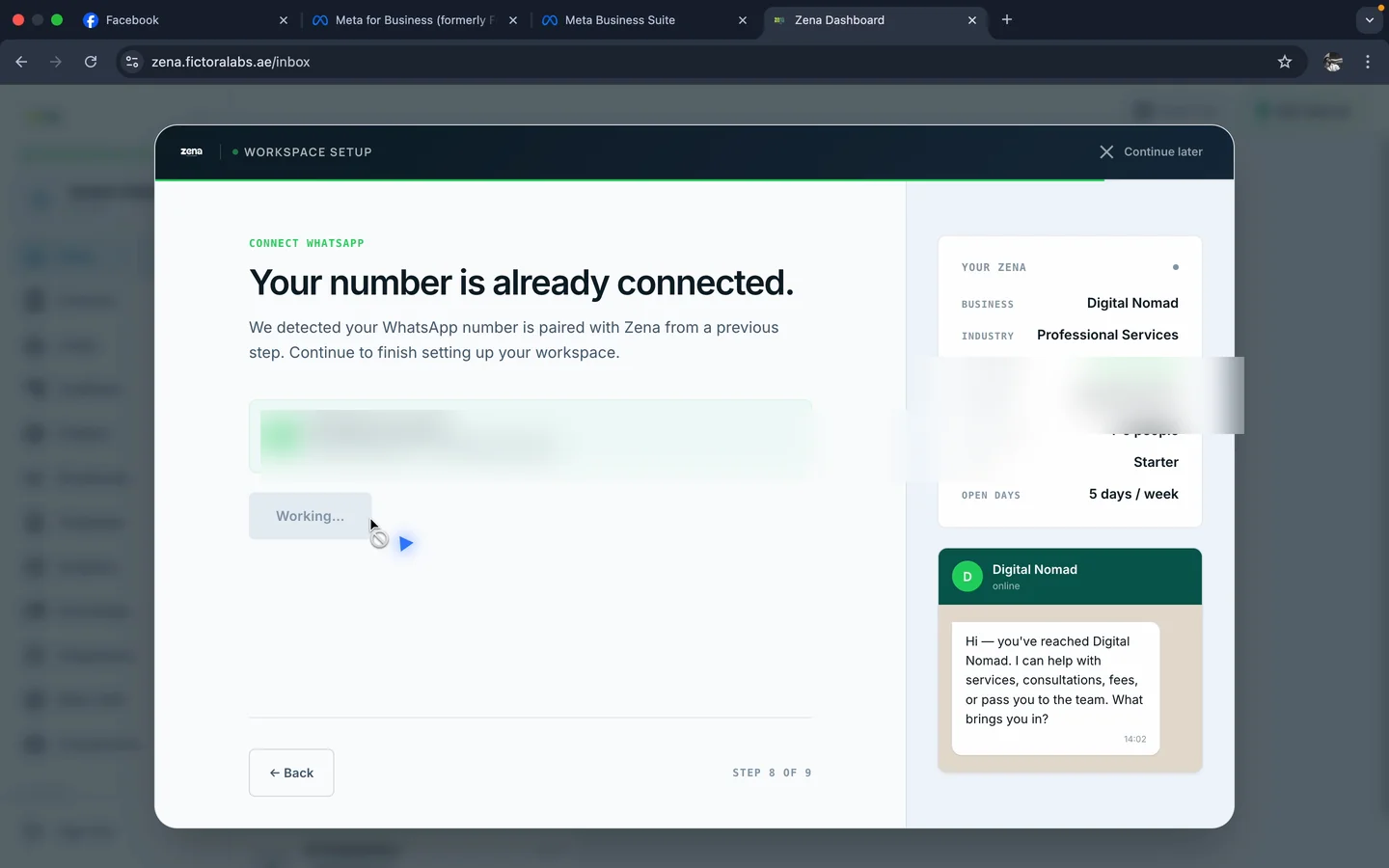
Back in Zena - "Your number is already connected"
Step 8 of 9 in the wizard. The WhatsApp account is paired from the embedded signup. Click Continue.
Back in Zena - Your number is already connected - Step 8 of 9
"WhatsApp connected." Step 8 of 9. Continue.
5
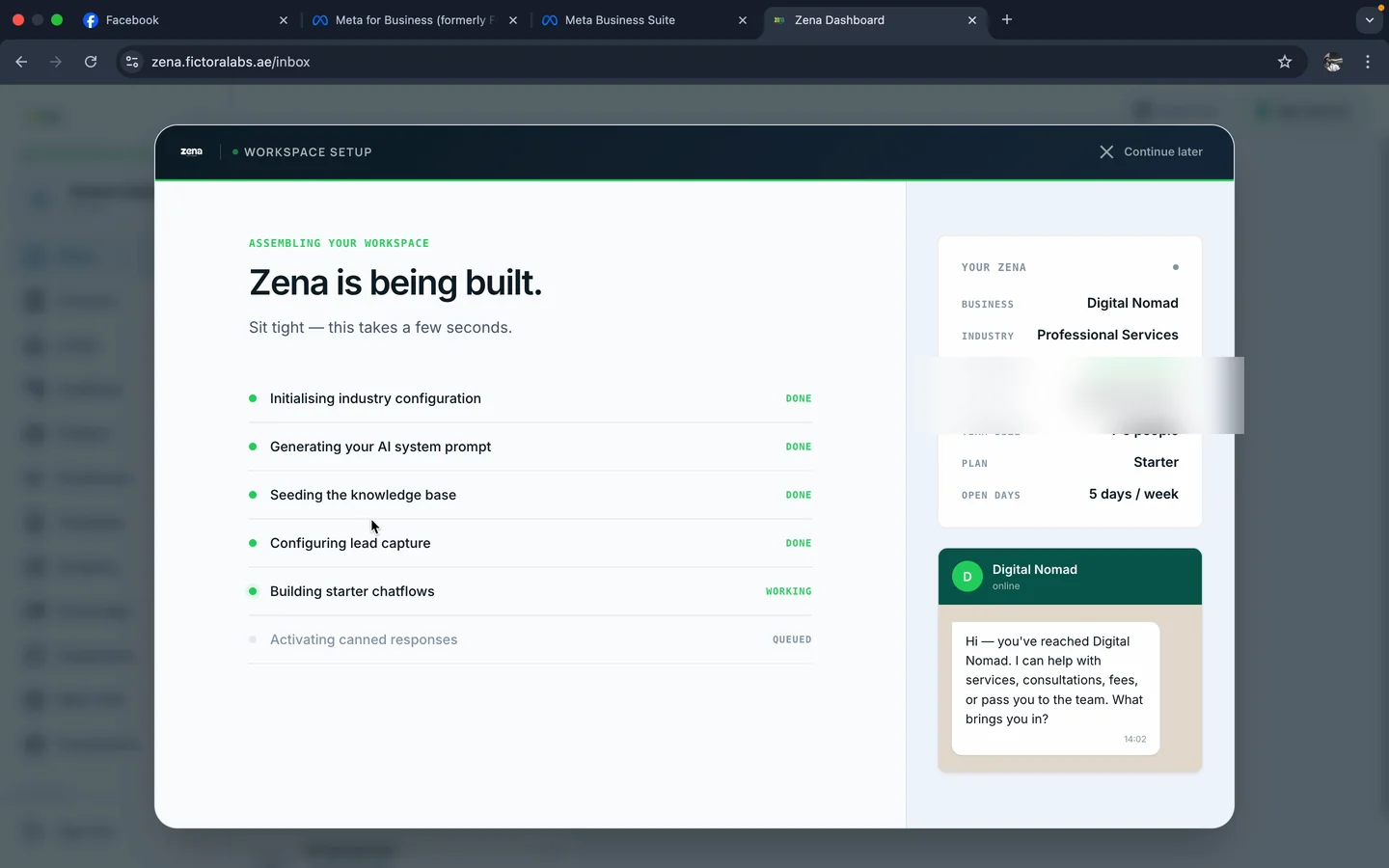
"Zena is being built" - sit tight, takes about 30 seconds
In real time you watch Zena assemble itself: initialising industry configuration, generating the AI system prompt, seeding the knowledge base, configuring lead capture, building starter chatflows, activating canned responses.
Zena is being built - workspace assembly screen
This is the moment everything you answered in the wizard turns into a live workspace.
6
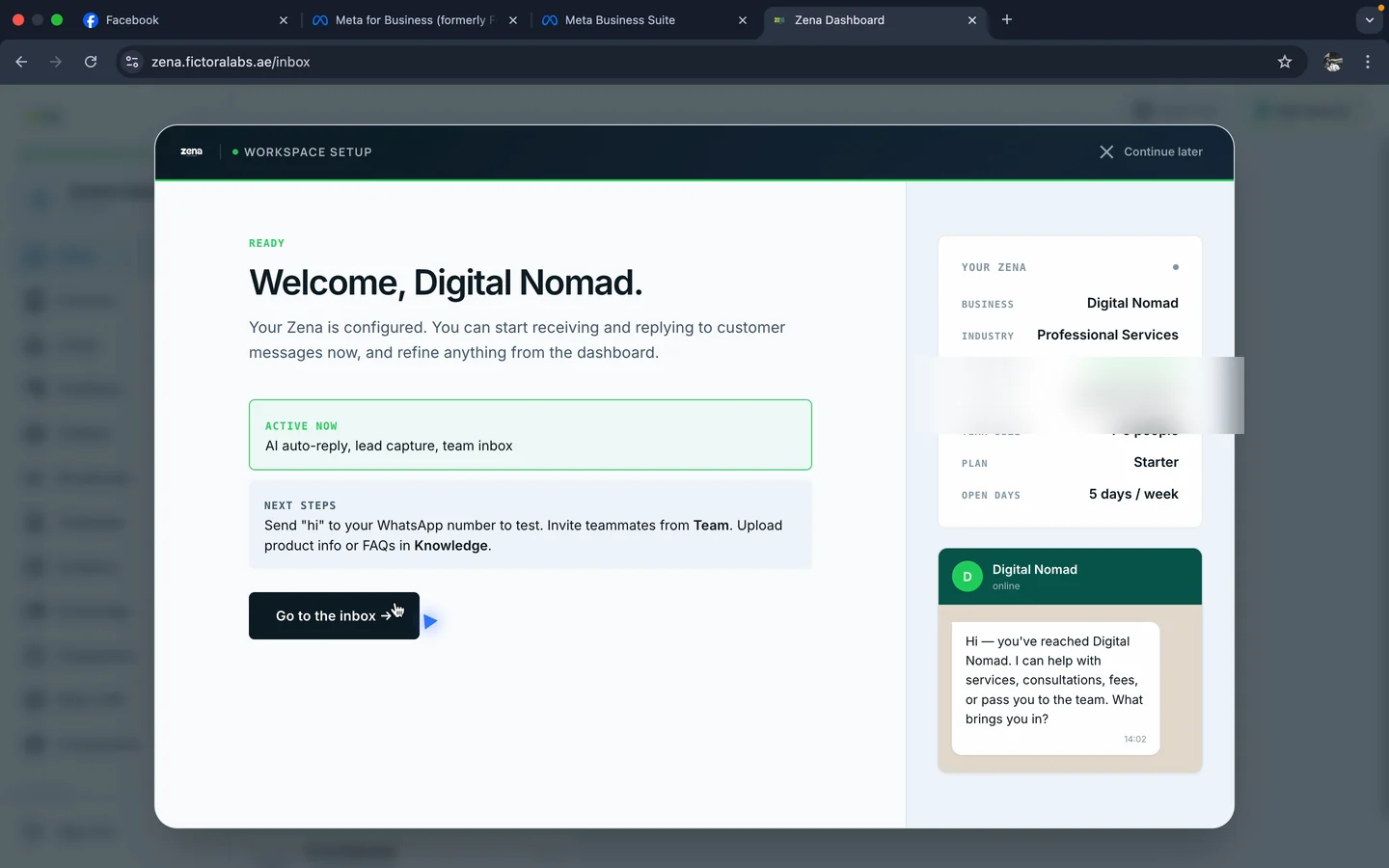
Welcome - your AI is live
"AI auto-reply, lead capture, and team inbox - active right now. Send Hi to your WhatsApp number to test it."
Welcome - Digital Nomad - AI auto-reply, lead capture, team inbox active
That's the end of onboarding. Your number is live on both your phone and Zena.
You're live. Send a "Hi" from another phone to your WhatsApp number - the AI replies, the message lands in Zena's inbox, and your phone app shows it too. That's Coexistence working.

If something goes wrong during this step

ErrorFix
Phone number not eligible - more activity needed
Your number hasn't been used enough on the Business App
Use the WhatsApp Business App actively with real conversations every day for at least 7 days, then try again.
This number is registered to an existing account
Number is on another WhatsApp or another platform
Contact Zena support with a screenshot - we help identify and release the number.
Number linked to another Business Manager
Was previously connected elsewhere
Log into that old Business Account → Settings → WhatsApp Accounts → remove the number → try again here.
Payment method already exists for this WABA
Previously connected to another BSP
Do not delete the old WABA. Create a second new WABA under the same business portfolio and use that one.
We can't verify the Meta business account
Business portfolio info is incomplete
Go to business.facebook.com → make sure your business name, address, website, and email are all filled in → try again.
You've guessed too many times
Too many wrong OTP attempts
Wait 12 hours and try again. Don't keep attempting - it extends the lockout.
Can't send verification code
Carrier issue or VoIP number
Choose "Call me instead" to receive the code via a voice call.
You're connected

What changes - and what stays exactly the same

Now that Coexistence is on, here is exactly what you can and cannot do going forward.

Your WhatsApp Business App continues to work exactly as before. Your existing chats are still there. Your contacts are still there. Nothing is deleted. You now have Zena running alongside it.

What stays the same on your phone

Still works normally on your phone

  • All your existing chats and history
  • Sending and receiving messages
  • Voice and video calls
  • Group chats
  • Status updates
  • Your product catalogue
  • Quick replies and auto-replies

New in Zena - not available in the app

  • Shared team inbox - multiple agents
  • AI chatbot and automation
  • Broadcast campaigns to thousands
  • Approved message templates
  • Analytics and reports
  • Customer history, notes, and CRM

Important things to know after connecting

Messages flow both ways - phone and Zena stay in sync
Replies from your phone appear in Zena and vice versa. The whole team sees everything in the shared inbox, so no one double-replies to the same customer.
Customers see a one-time privacy notification
Per Meta's terms shown during the embedded signup, customers messaging your number get a notification that one-to-one chats now flow through a secure Meta service. This happens once, automatically.
Group chats stay phone-only
Per Meta's coexistence terms, group chats are not synced to Zena - only one-to-one conversations. Use the WhatsApp Business app on your phone for any group threads.
Don't uninstall the WhatsApp Business App
Coexistence relies on the app staying installed on the original phone. To disconnect properly, see the instructions below - don't just delete the app.

Your 3 next actions

1

Send "Hi" to your number to test the AI

From any other phone, send "Hi" to your WhatsApp number. The AI auto-reply you configured during the wizard fires within seconds. The conversation also lands in Zena's inbox so you can see exactly what the customer experience looks like.

2

Add your team in Zena

Go to Zena → Settings → Team Members → Invite. Add your staff as agents - they reply from their own Zena login without needing access to your phone. Roles available: Superadmin, Admin, Agent, Viewer.

3

Upload more to the Knowledge module

Zena already ingested up to 5 pages from your website during onboarding. Add PDFs, FAQs, or pricing docs in the Knowledge module to make AI replies sharper. Starter plan supports 20 docs, Growth 40, Business unlimited.

How to disconnect if you ever need to

⚠️
Do not disconnect unless you are certain. Reconnecting requires going through the full setup again.

To disconnect properly: Open WhatsApp Business App → Settings → Account → Business Platform → Disconnect. Do not just uninstall the app - that creates a more complex problem to fix.
Troubleshooting

Errors and fixes - full reference

Find the exact error you are seeing and follow the fix. If your error is not listed here, contact Zena support with a screenshot.

During Meta Business Account setup

ErrorCauseFix
Your account has been restrictedNew or suspicious Facebook accountUse an older, active personal Facebook account instead
Business Manager already existsYou created one beforeLog in to business.facebook.com and use the existing one - do not create another
Your business is prohibited from advertisingPrevious ad account violation on your Facebook profileCreate a Business Account using a different personal Facebook account
We can't verify this URLWebsite is broken, empty, or under constructionUse your Google Business Profile URL or a fully built Instagram Business page URL instead

During WhatsApp connection in Zena

ErrorCauseFix
Phone number not eligible - more activity neededBusiness App too new or not enough conversationsUse the Business App actively with real conversations every day for 7–30 days. Try again after.
This number is registered to an existing accountNumber still on another WhatsApp or another platformContact Zena support - we help identify and release the number
Number linked to another Business ManagerWas connected to a different Business Account beforeLog into that old Business Account → Settings → WhatsApp Accounts → remove the number → try again
Payment method already exists for this WABAPreviously used with another BSPDo not delete the old WABA. Create a second new WABA under the same Business Account
We can't verify the Meta business accountBusiness Account info incomplete or missingGo to business.facebook.com → complete all fields: name, address, website, email → try again
You've guessed too many timesToo many incorrect OTP attemptsWait 12 hours and try again. Stop attempting - more tries extend the lockout
Can't send the verification codeCarrier block or VoIP numberChoose "Call me instead" to receive the code via voice call
Business doesn't meet policy requirementsBusiness type may be in a restricted categoryContact Meta Business Support directly via business.facebook.com - cannot be fixed from Zena's side

After connecting - things that may stop working

IssueCauseFix
Group chats not appearing in ZenaPer Meta's Coexistence terms, group chats stay phone-only - they are never synced to the platformHandle group threads from your phone's WhatsApp Business app. Use Zena's broadcasting + chatflows for one-to-many outreach instead.
Customer messages not appearing in ZenaWebhooks interrupted, or the WhatsApp Business app was uninstalled from the connected phoneContact Zena support immediately with the affected number. Do not reinstall the app until support advises - that can compound the issue.
💬
Still stuck? Contact Zena support with a screenshot of the exact error message. The more detail you include, the faster we can resolve it. Contact support →