
Most WhatsApp platforms make onboarding feel like applying for a business licence. We built Zena's coexistence flow to feel like signing up for any other SaaS - only with a brief detour through Meta's embedded signup so your number gets connected the right way.
Watch the full 5-minute walkthrough above, or read on for the screen-by-screen breakdown.
I recorded the entire onboarding end to end on a real test account. From clicking Start Free Trial on zena.fictoralabs.ae to seeing the "Welcome, Digital Nomad" screen, the whole thing took about 5 minutes. The phone-side QR scan is the only mobile step, and it's about 45 seconds.
Here's a builder's-eye view of what happens at each beat - and where the common confusion (trade licence! business verification!) actually lives, which is not in coexistence onboarding.
1. Sign up: pick "Continue with Facebook"
Open zena.fictoralabs.ae, hit Start Free Trial. The create-account screen splits in two: a value strip on the left, and your sign-up choice on the right. Pick the green Continue with Facebook (Recommended) button.
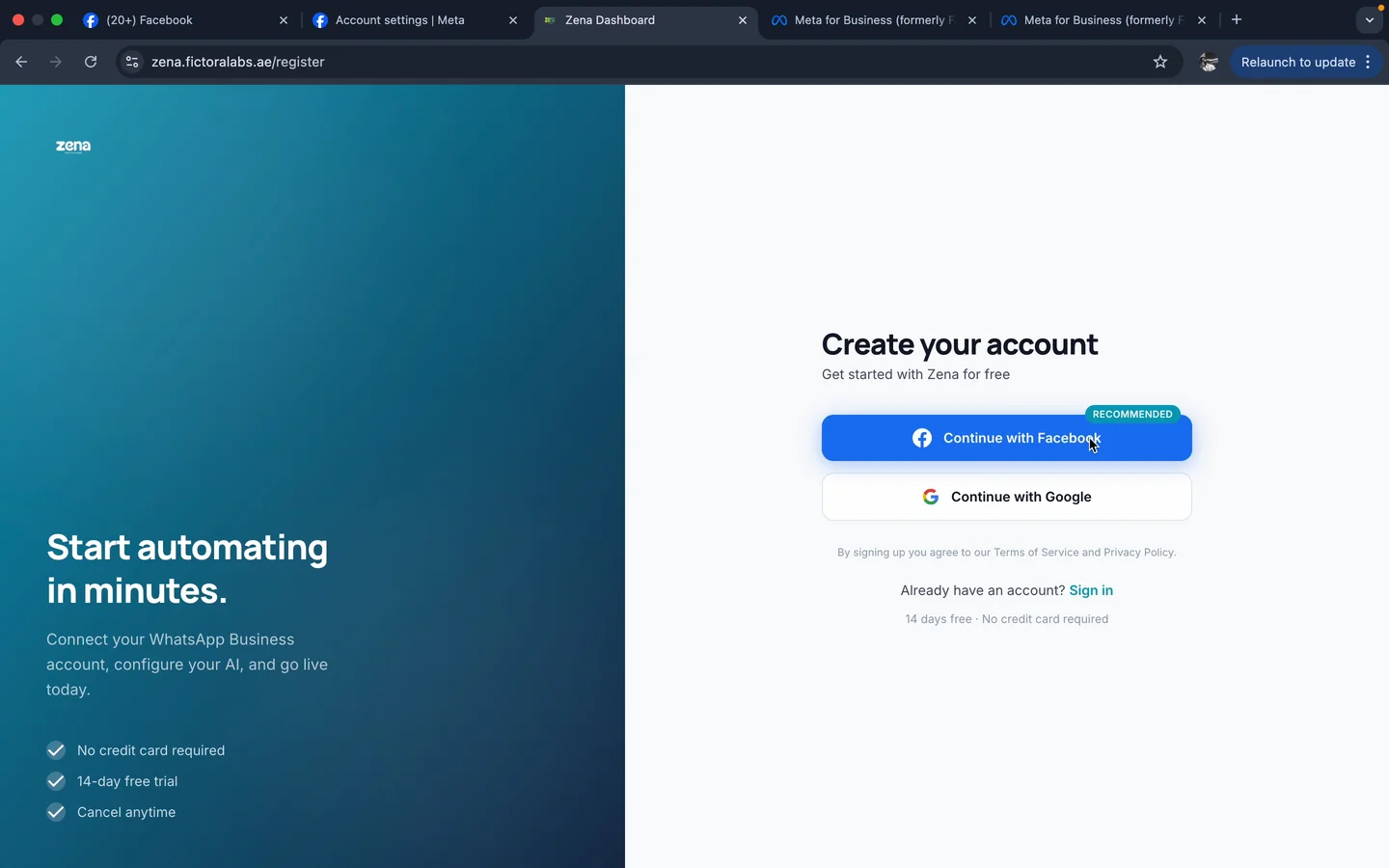
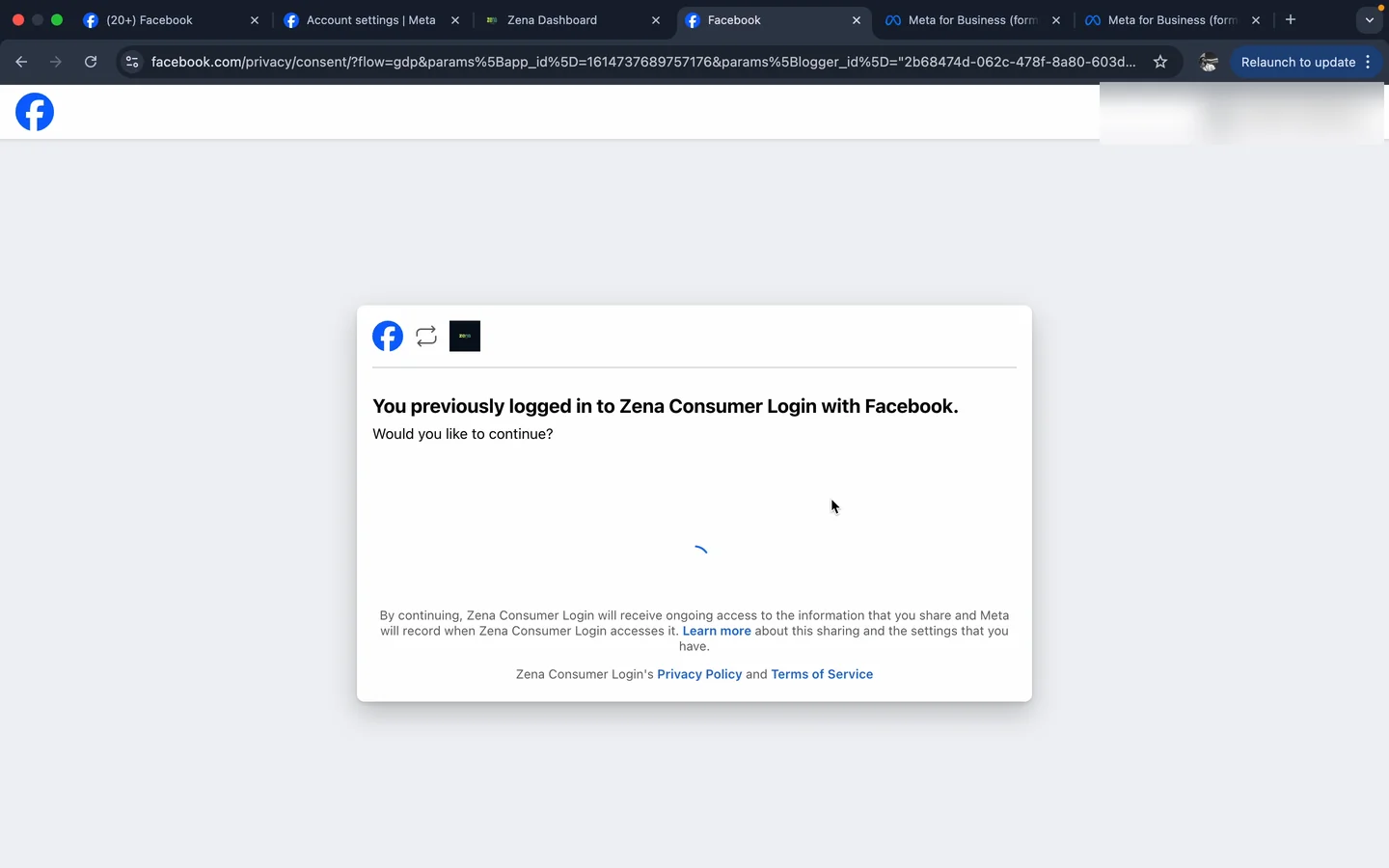
Why Facebook? Because Zena is a Meta Business Solution Provider, and every WhatsApp Business account ultimately lives inside Meta. Even sign-up runs through it. Use your real personal Facebook account at the password prompt, then click through the one-tap consent screen.
2. Dashboard tour, then the workspace wizard
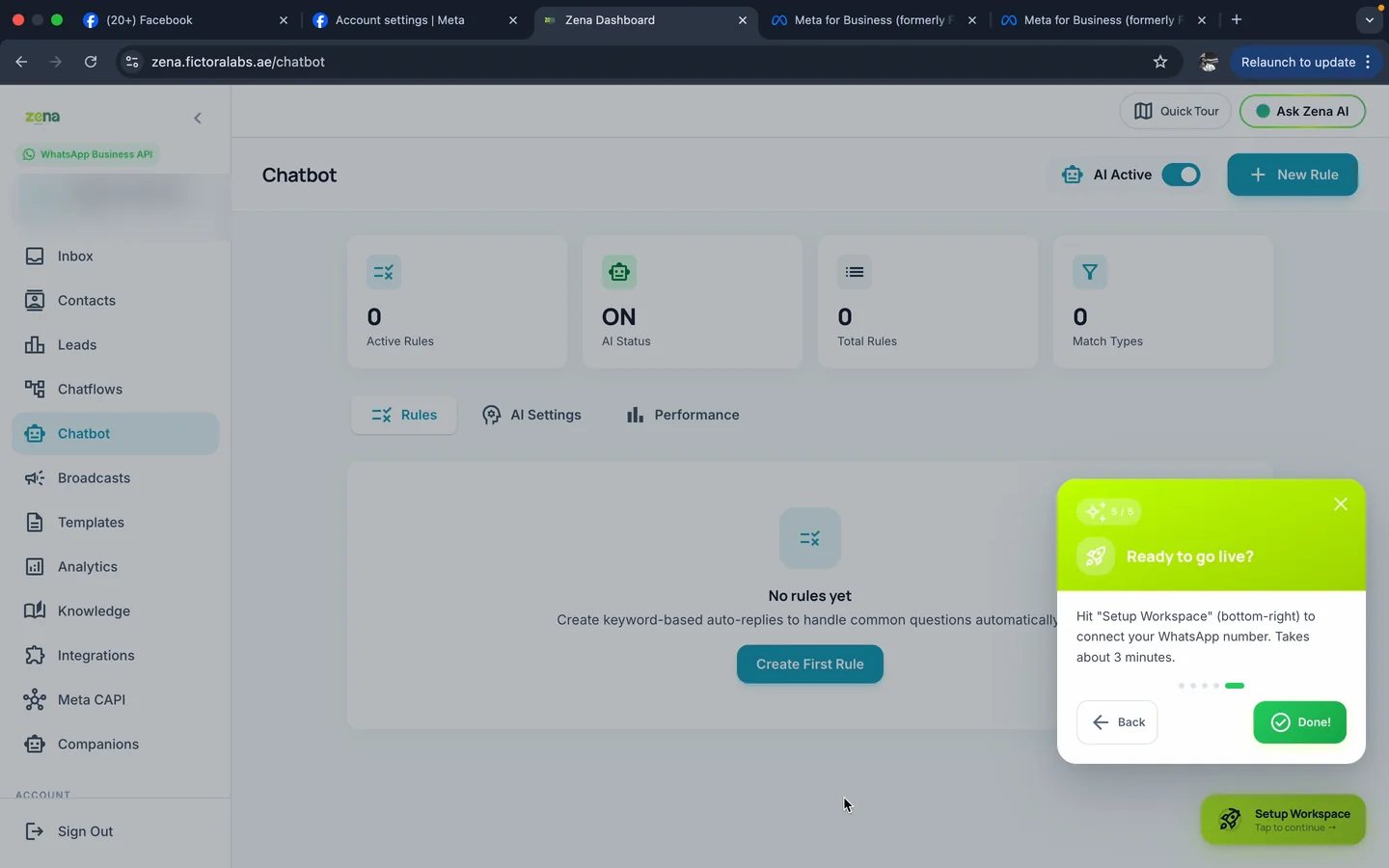
You land in the workspace and an 8-step product tour walks you through each module: Inbox, Contacts, Leads, Chatflows, Chatbot, Broadcasts, Templates, Analytics, Knowledge, Integrations, Meta CAPI, Companions. The tour ends with one prompt: Hit Setup Workspace, bottom-right.
3. The wizard configures Zena around your business
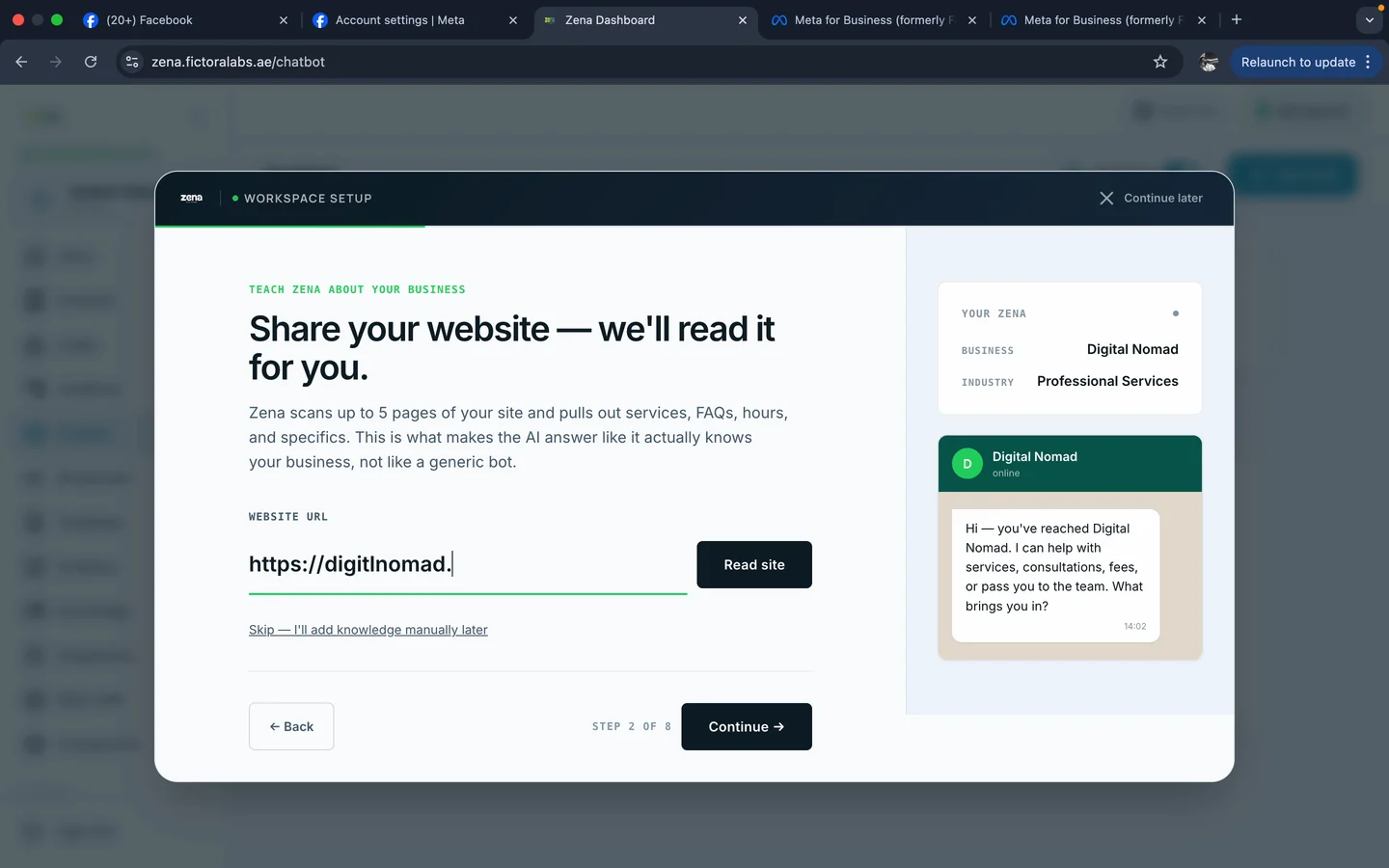
This is the part I'm most proud of. Most WhatsApp platforms hand you an empty dashboard and tell you to "configure your bot." We did the opposite, Zena asks you 7 short questions and configures itself. Nothing is saved until the very end, so you can experiment freely.
The most useful chapter is the website ingestion: paste your URL, hit Read site, and Zena scans up to 5 pages (services, FAQs, hours, pricing) and extracts specifics. In the recorded test we got 15 facts learned in about 30 seconds. That's the difference between an AI that answers like it knows your business and one that sounds like a generic bot.
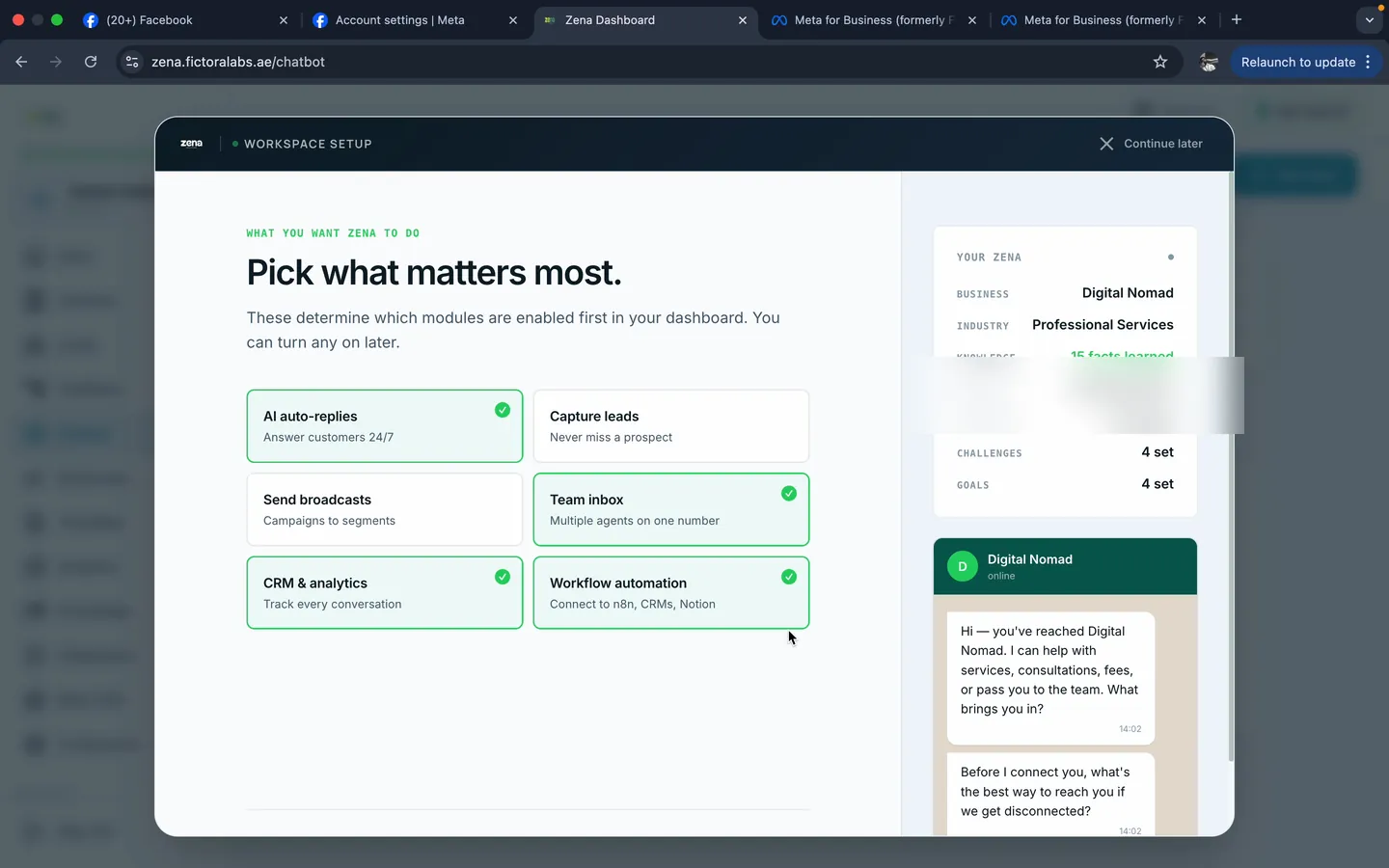
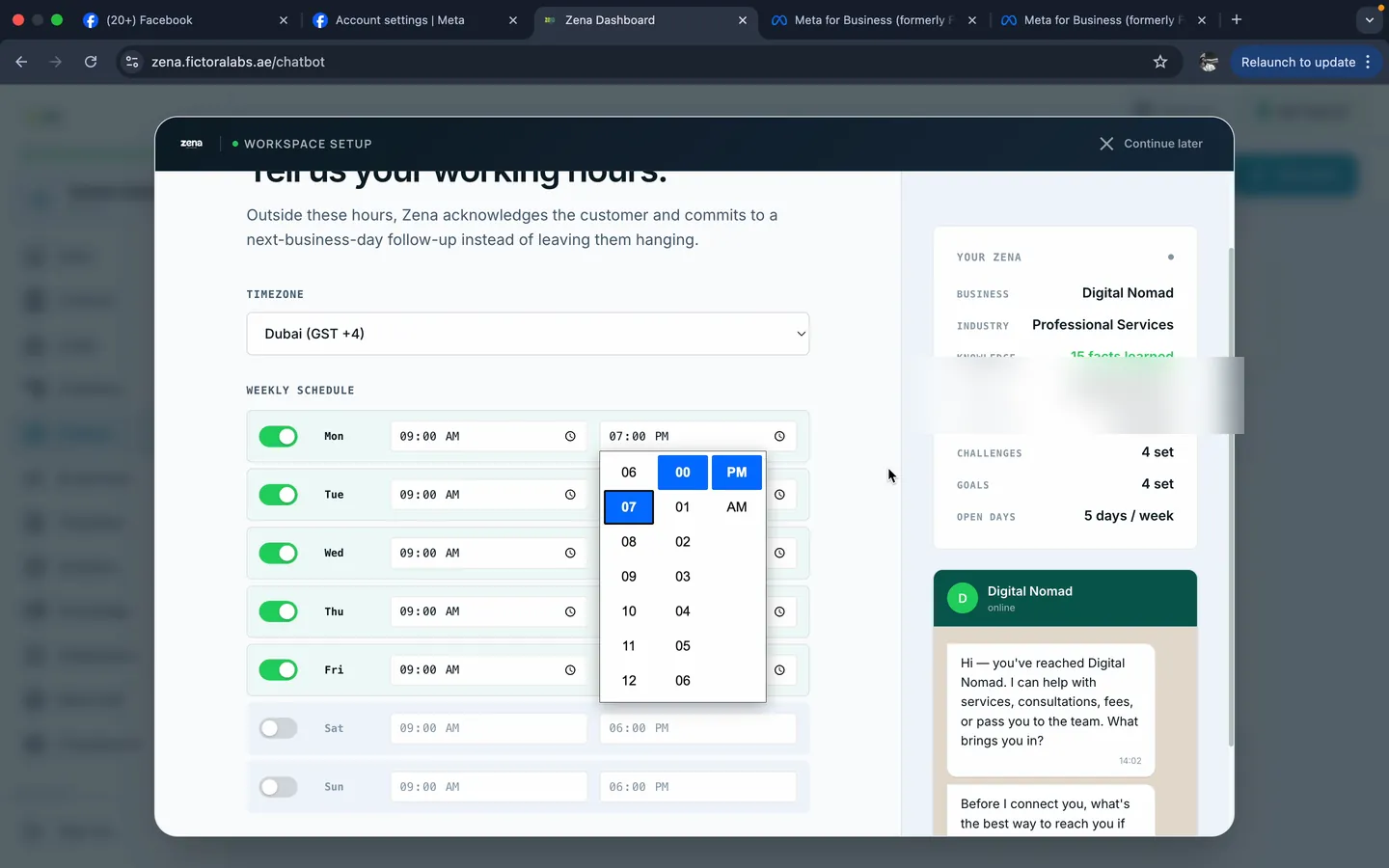
Then it asks for your team size, the challenges you're feeling (after-hours leads, Arabic support, follow-ups…), the priorities you want live first, and your working hours. The right-side preview updates in real time so you can see your AI greeting take shape before anything is saved.
4. Chapter 7: "Bring your number on board"
This is the moment of truth. Two paths shown: Keep using WhatsApp Business App (Coexistence, recommended) or Switch to Cloud API entirely. Pick Coexistence. Your phone app keeps working, your team gets the shared inbox in Zena alongside it.
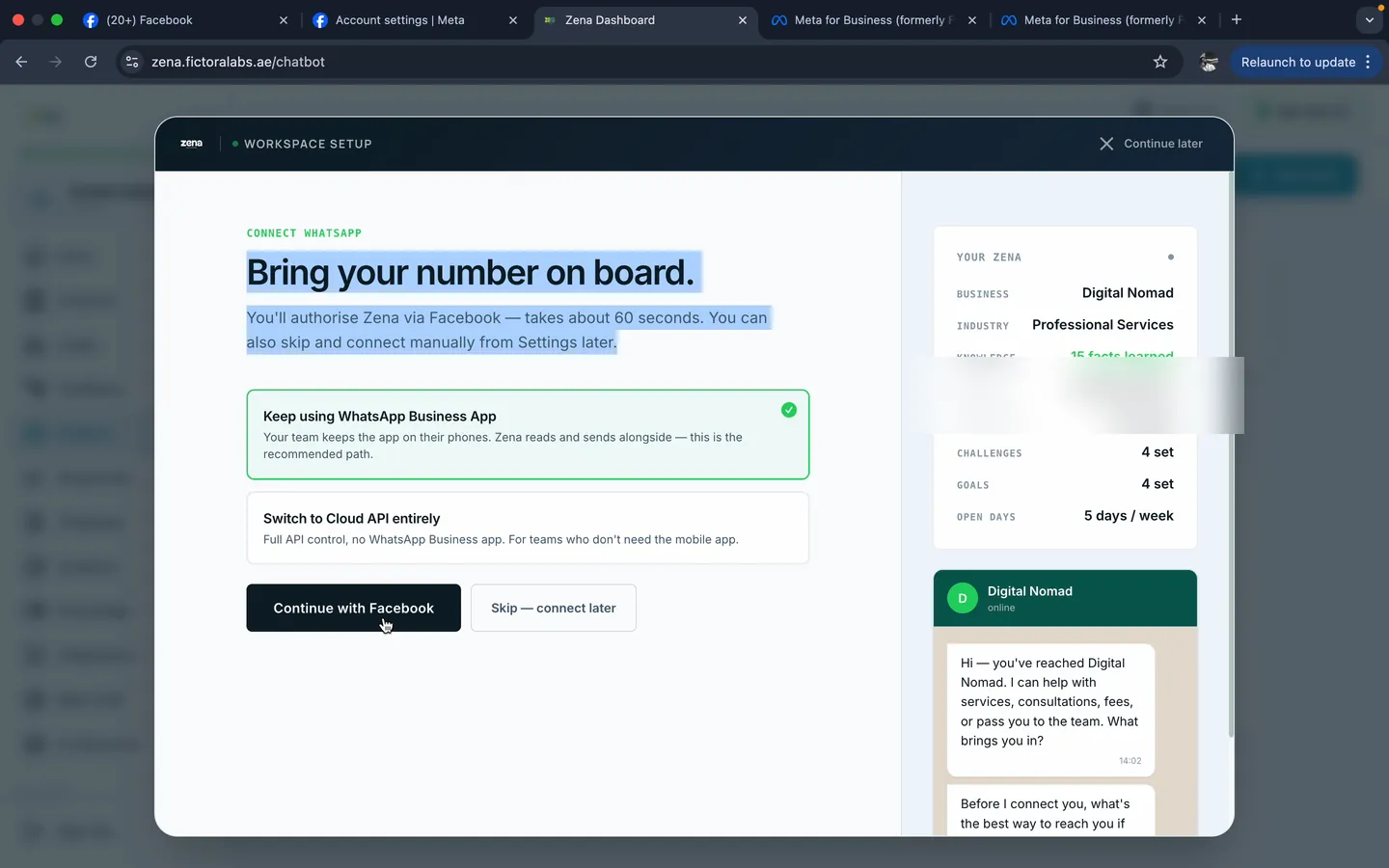
5. Side trip: confirm the Meta prerequisite at business.facebook.com
Open a new tab to business.facebook.com. If you have an existing Meta business portfolio (most businesses with a live Facebook Page do), it loads on the home dashboard.
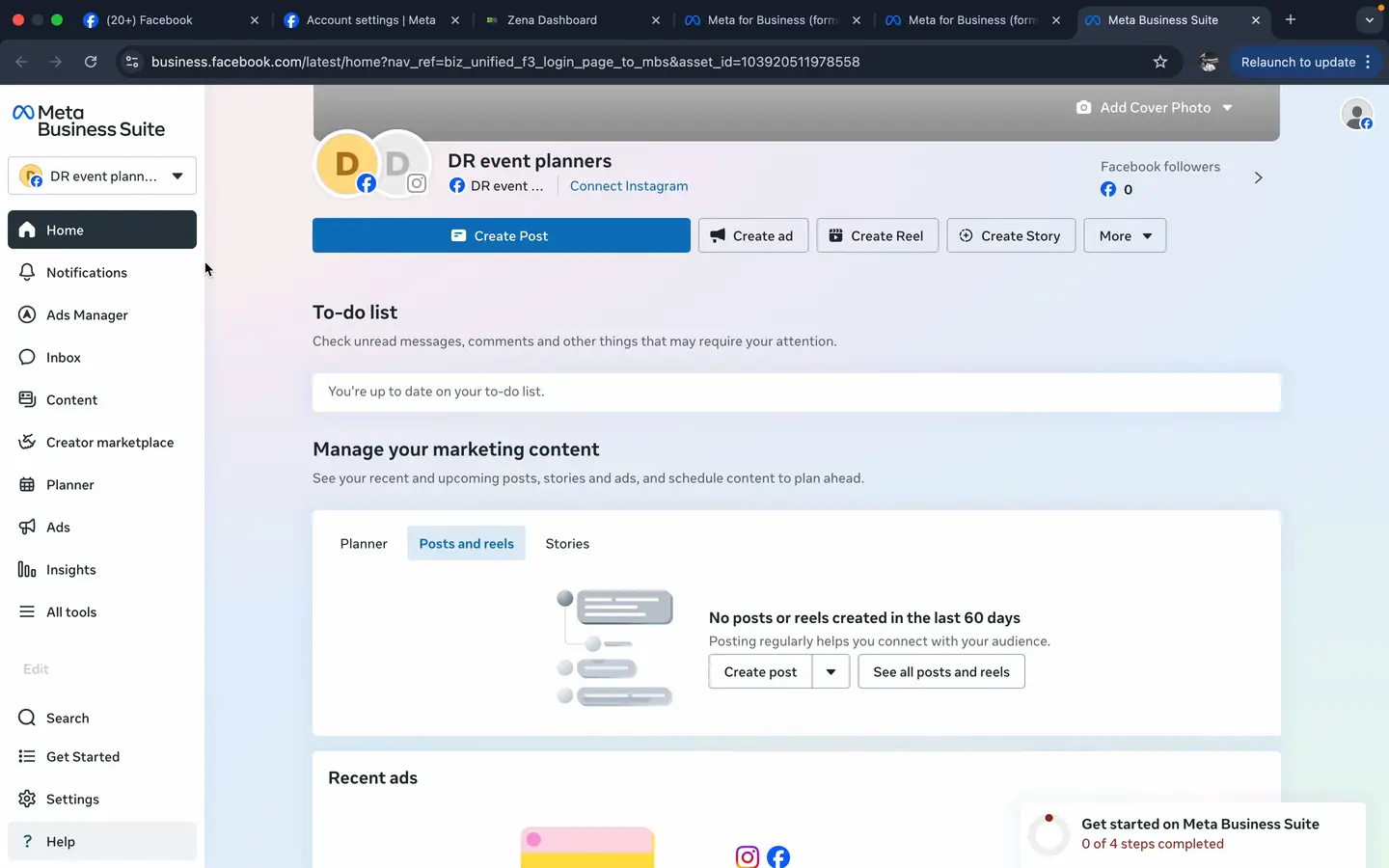
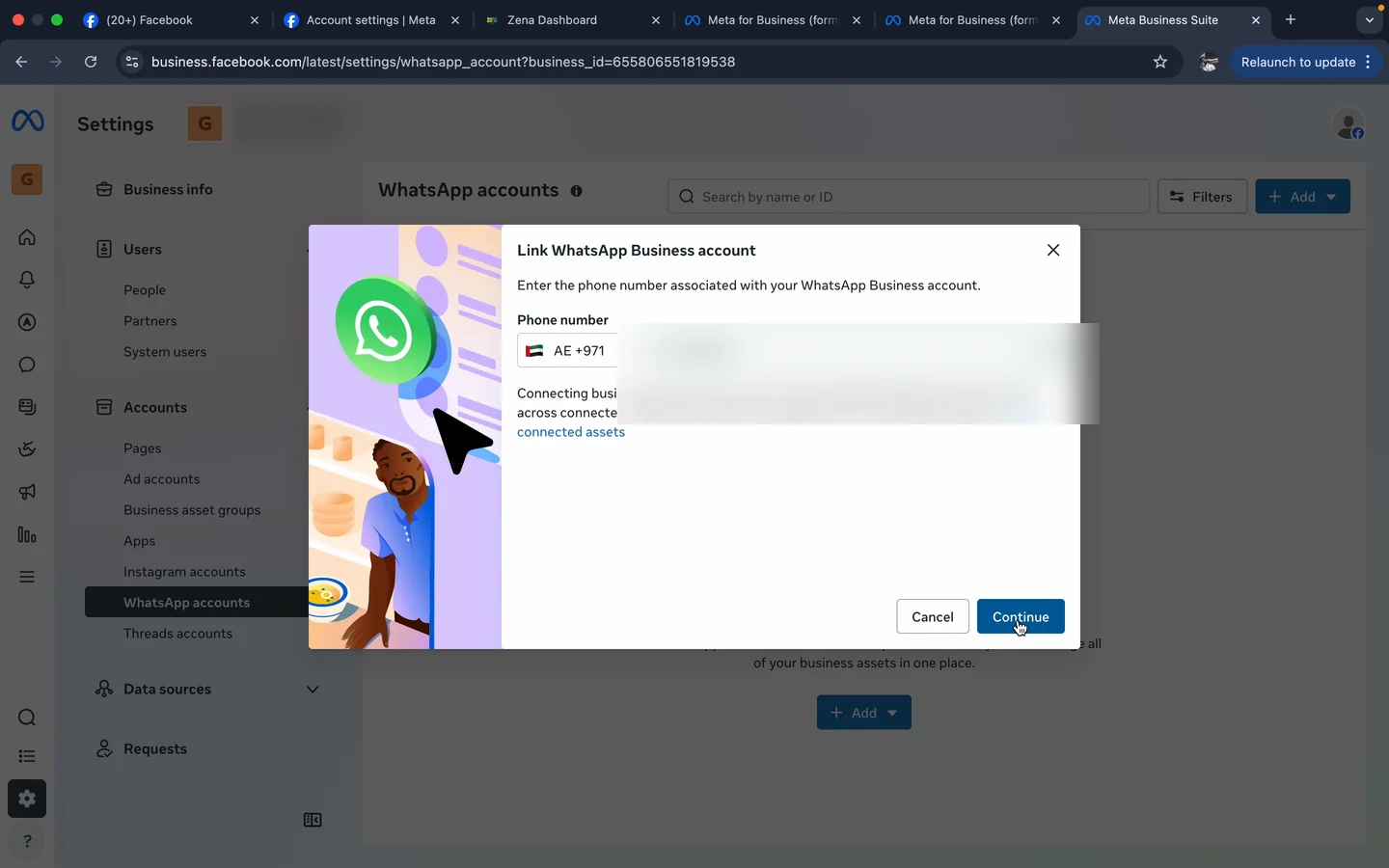
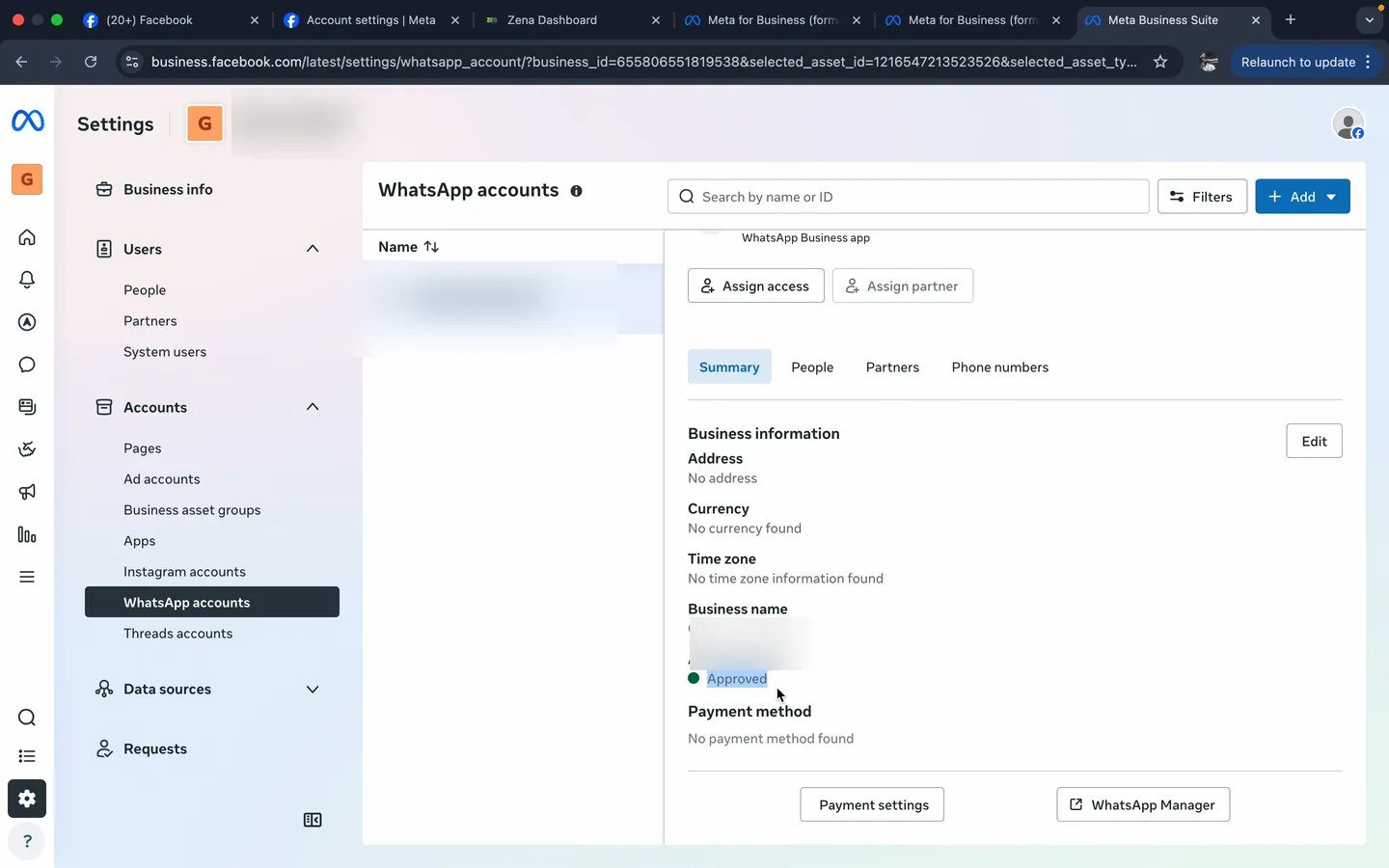
Go to Settings → Accounts → WhatsApp accounts. If your WhatsApp Business number isn't already in the list, click Add, switch country code to AE +971, type your number, click Continue.
Meta sends a 5-digit verification code to the official Facebook Business chat inside the WhatsApp Business app on that phone. Type the code in.
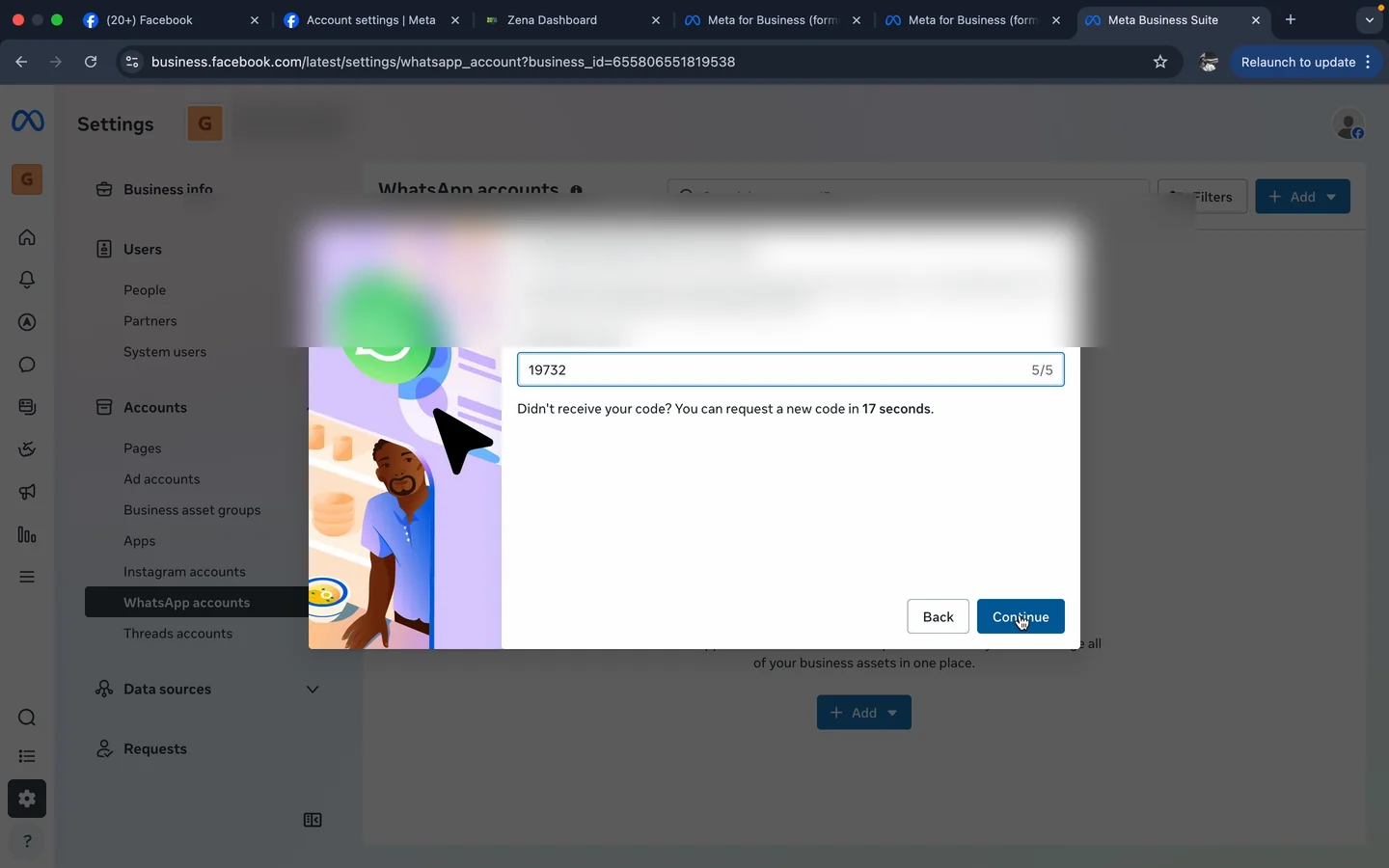
Status flips to Approved. The prerequisite is now in place: your number lives inside a Meta business portfolio, ready for the embedded signup to pick it up.
6. Back on chapter 7 in Zena, click Continue with Facebook
Switch back to your Zena tab. You're still on chapter 7 with Keep using WhatsApp Business App selected. Now click Continue with Facebook. Meta's embedded signup launches in a popup. Read the terms, pick your portfolio, choose "Connect a WhatsApp Business app" (the coexistence path), enter your phone, agree to the data-sharing disclosure.
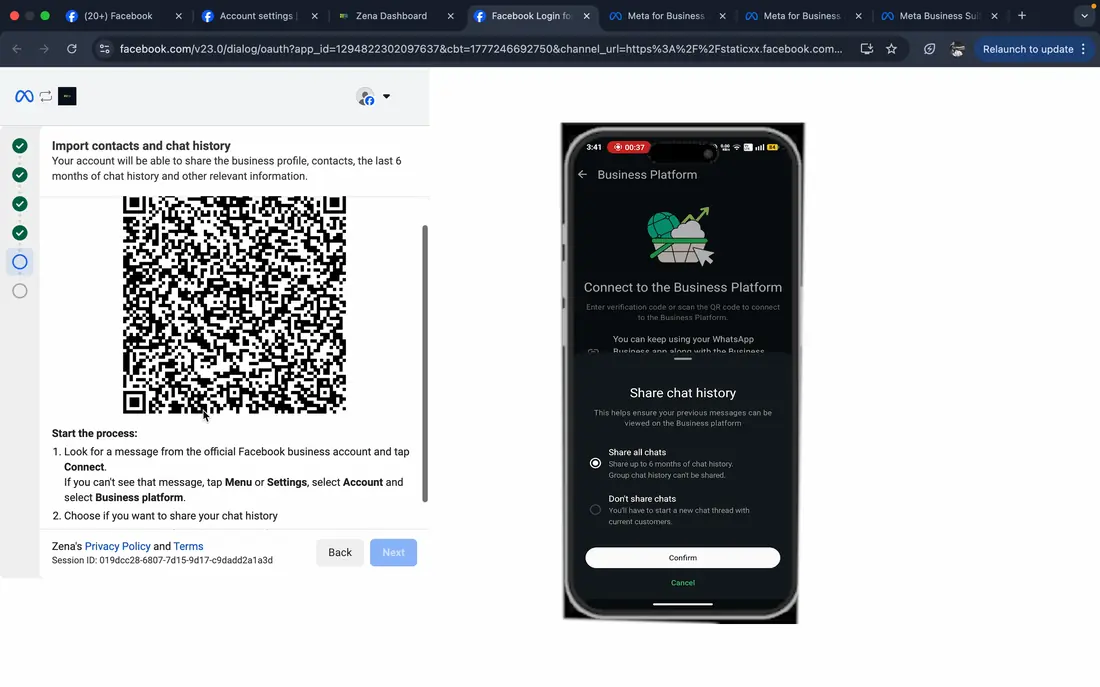
Then the screen splits in two. The desktop shows a QR code. The next 5 actions happen on your phone: open WhatsApp Business, tap the official Facebook Business chat (the verified one with the blue tick), tap Connect to the Business Platform, pick Share all chats, scan the QR. About 45 seconds total. Then a green check: You're connected to Fictora Labs.
7. Zena assembles itself, then says hi
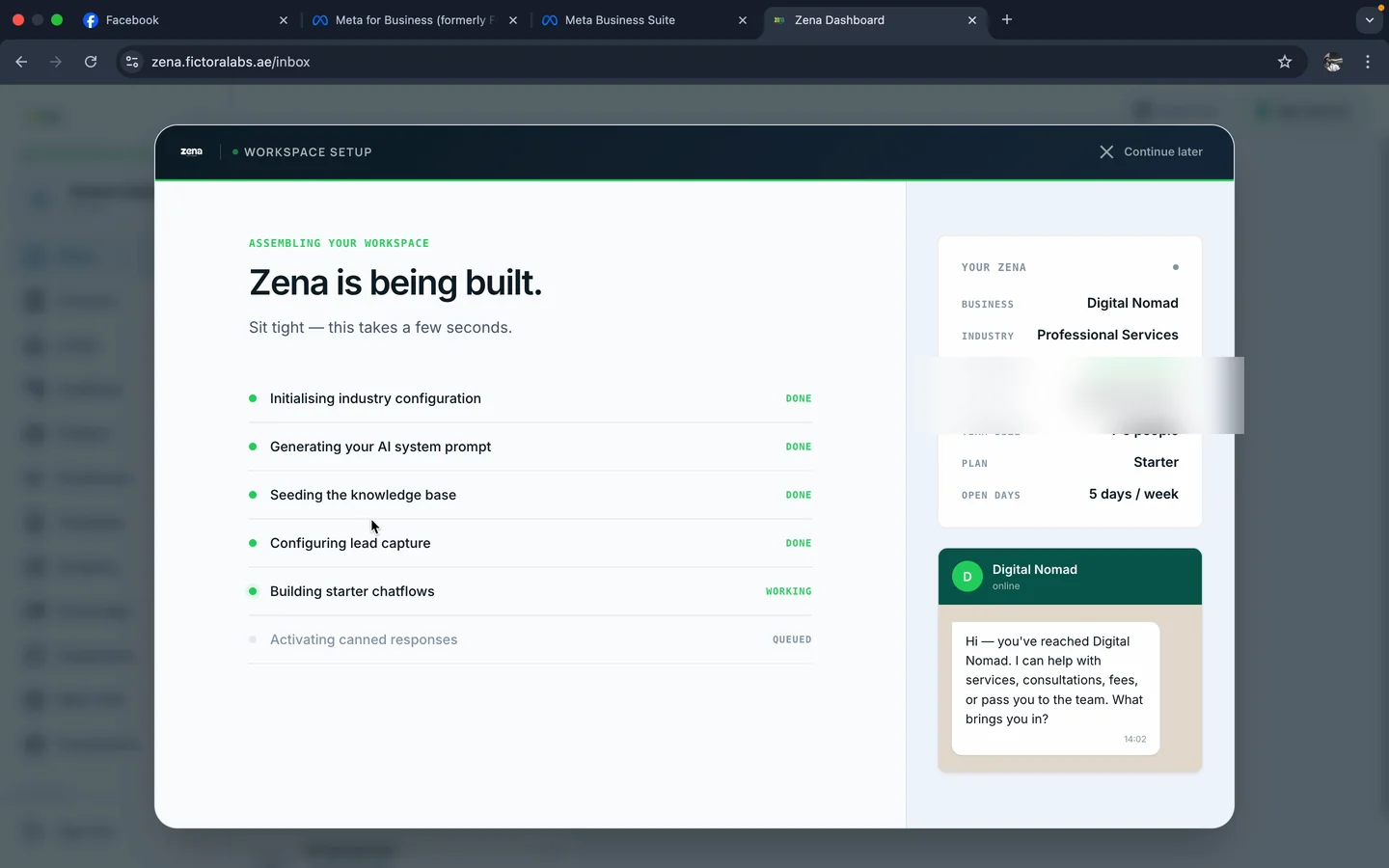
Back on the desktop, Meta confirms the connection (you'll get an email when Fictora Labs verifies the partnership at the BSP level - this is automatic), Zena finds the paired number, and you watch the workspace build itself in real time: industry config initialised, AI system prompt generated, knowledge base seeded, lead capture configured, starter chatflows built, canned responses activated.
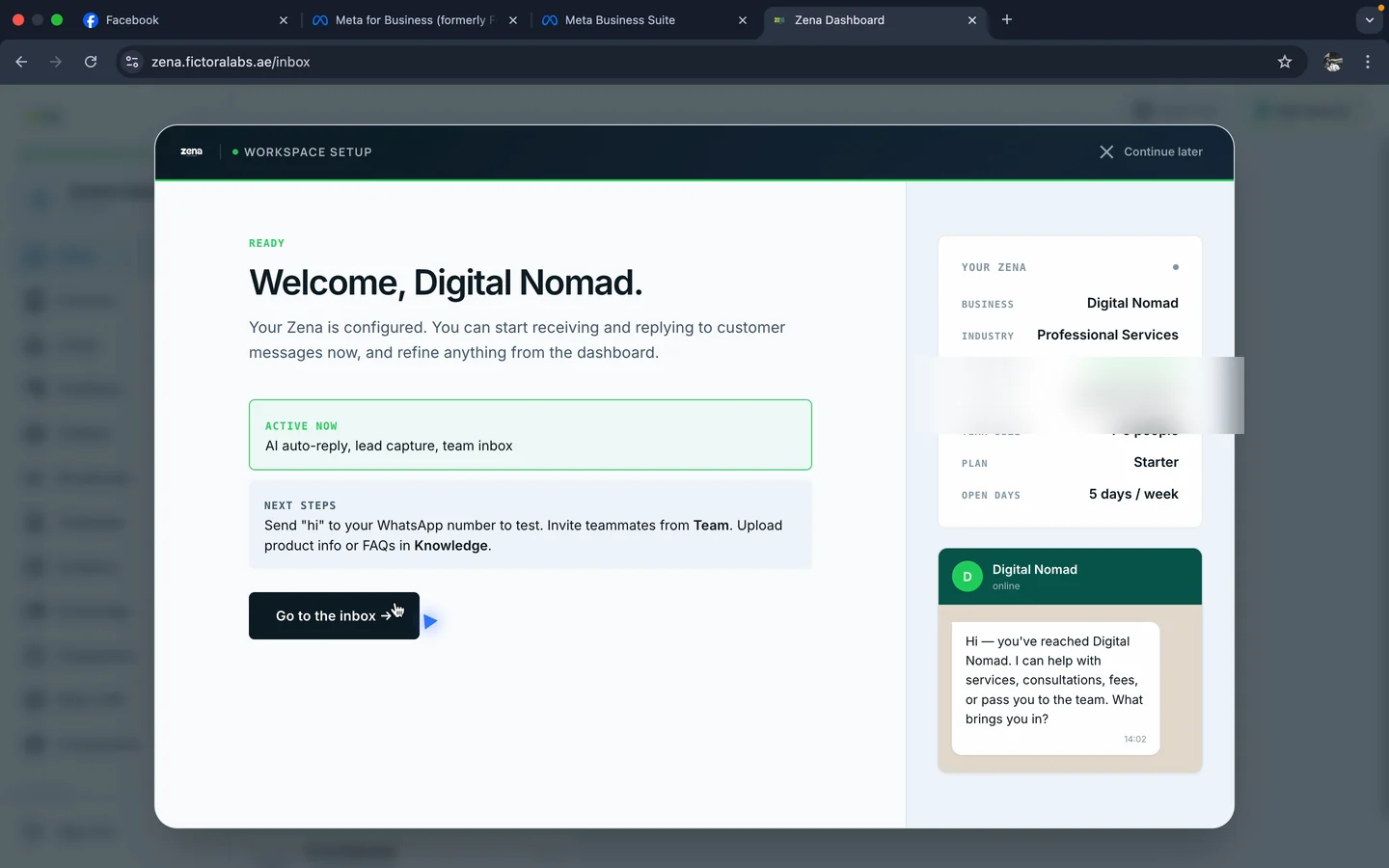
Then the welcome screen: AI auto-reply, lead capture, and team inbox - active right now. Send "Hi" to your WhatsApp number to test it.
What this means for you
If you've been putting off WhatsApp automation because the onboarding sounded technical, this is what "technical" actually looks like in 2026: 7 product questions, a phone QR scan, and Meta's embedded signup. No paperwork. Your existing chats stay. Your phone keeps working. Your team gets a shared inbox, an AI that actually knows your business, and broadcasting on top.
Trade licence and business verification only enter the picture later, if you decide to migrate from coexistence to Cloud API for higher messaging limits. For most UAE businesses, coexistence is the right starting point and stays the right answer for a long time.
Want the full step-by-step guide?
Every screen, every Meta error, every checklist. 29 annotated screenshots, end to end.
Open the full guide →